About This Guide
Kwizto is a quiz management platform built by Aliston. Administrators create, publish, and manage quizzes, assign them to people as participants, and review results. Participants complete quizzes through a personal emailed link — no account of their own required — and their results are recorded automatically.
Kwizto runs in two modes, and this guide covers both side by side:
- Cirrus Shield mode — your organization already uses Cirrus Shield. You sign in with your Cirrus Shield account, and participants are sourced directly from Cirrus Shield records (Contacts, Leads, etc.) from inside Cirrus Shield itself. Results are written back to Cirrus Shield.
- Standalone mode — you run Kwizto entirely on its own. You register your own account, build your own participant list, and manage everything from within Kwizto, with an optional connection to Cirrus Shield if you want one.
Sections below are marked (Both modes), (Cirrus Shield mode), or (Standalone mode) so you can follow the parts that apply to you.
1. Getting Started
1.1 Signing In — Cirrus Shield mode
In Cirrus Shield mode, you sign in with your Cirrus Shield account only — there is no separate Kwizto username, password, or registration step:
- Open Kwizto through the sign-in link provided by your Cirrus Shield administrator. This link opens the Kwizto login page (
kwizto.com/app/login) and identifies your organization. - Click Connect with Cirrus Shield.
- Sign in on your Cirrus Shield organization's own login page.
- The first time, authorize Kwizto to access your account. You're then redirected back to Kwizto, already signed in.
Your access follows your existing Cirrus Shield account and organization, and your session stays active for 12 hours. The Connect with Cirrus Shield button only appears when you open the login page through your organization's sign-in link, once an admin has set up the connection for the whole organization — see the companion Kwizto Admin Guide for Cirrus Shield-Integrated Organizations for setup steps. If you don't see the button, ask your Cirrus Shield administrator for the sign-in link.
1.2 Registering and Signing In — Standalone mode
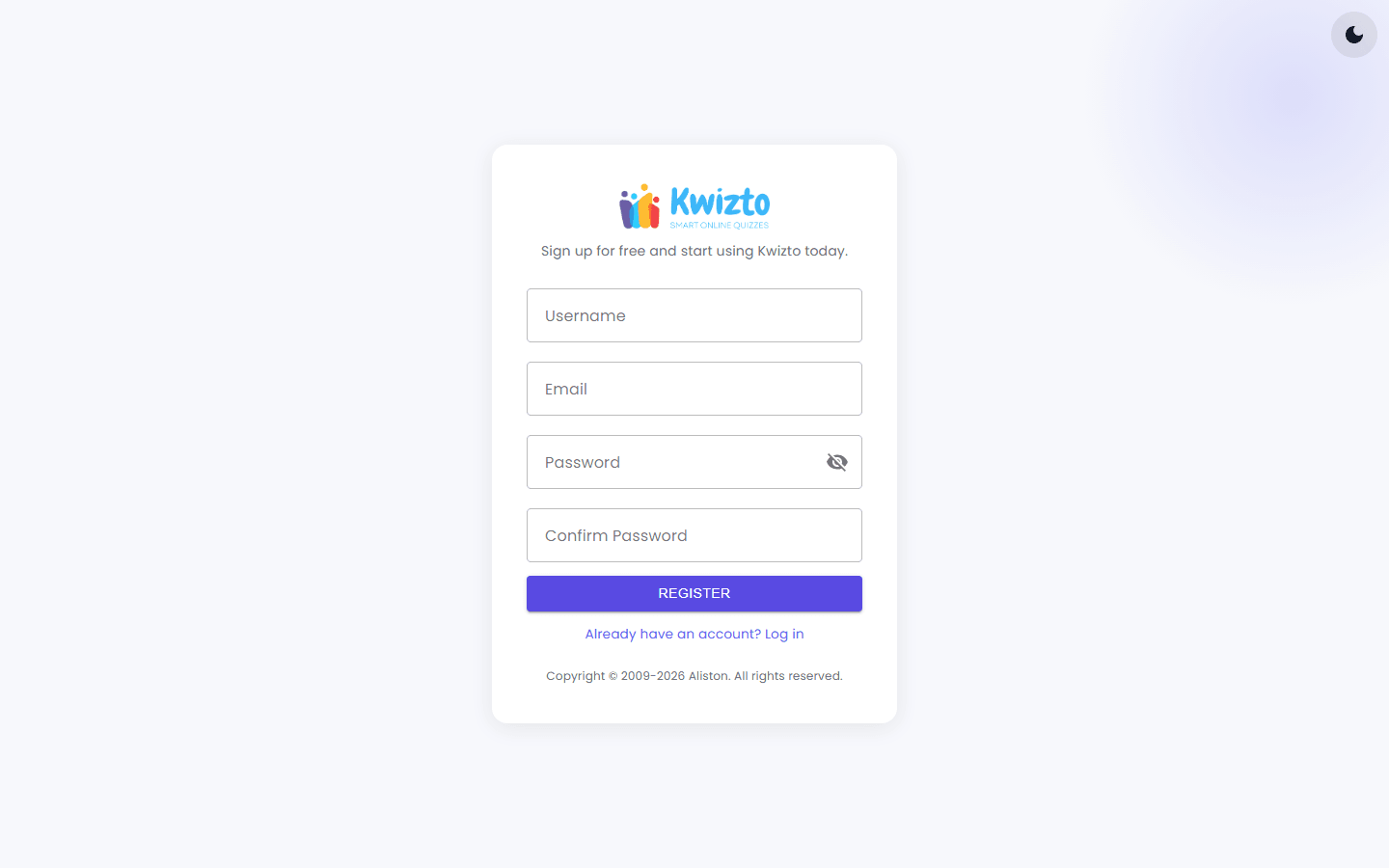
- Go to the Register page (the No account? Register here link on the login page,
kwizto.com/app/login), choose a username, enter your email address, choose a password, and submit — you're signed in immediately. Username, email and password are required, and the email address must not already be used by another Kwizto account. - A verification email is sent to confirm your address.
- You can begin building quizzes immediately. Your current license is shown in Parameters > Account (Section 7.3).
To sign in later, enter your username and password on the login page (kwizto.com/app/login) and click Login; you land on your Home dashboard (kwizto.com/app). If you forget your password, use the Forgot your password? link on the login page. Sessions last 12 hours.
If sign-in is ever blocked by a license message, the login page may also show a License Key field where you can enter a license key and reactivate your account without needing to log in first. If no License Key field is shown, contact support.
1.3 Your Navigation — What Differs by Mode
| Menu Item | Cirrus Shield mode | Standalone mode |
|---|---|---|
| Home | Yes | Yes |
| Quizzes | Yes | Yes |
| Email Templates | Yes | Yes |
| Participants | Not shown — managed from inside Cirrus Shield | Yes |
| Sessions | Not shown | Yes |
| Parameters | Not shown | Yes |
If you're in Cirrus Shield mode, don't be surprised that Participants and Parameters menu items are missing — those workflows happen from inside Cirrus Shield instead (Section 3.1).
1.4 The Home Dashboard (Both modes)
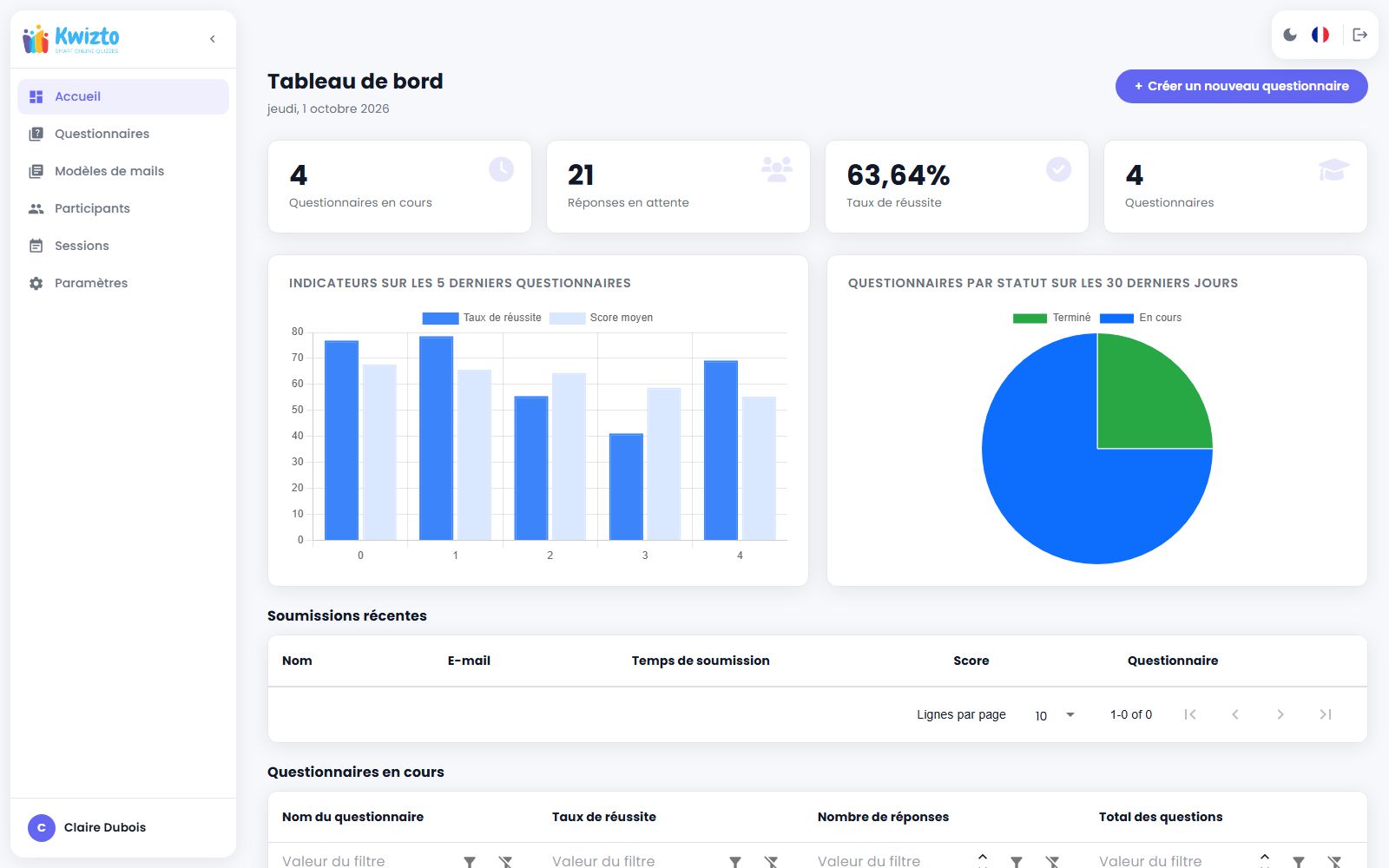
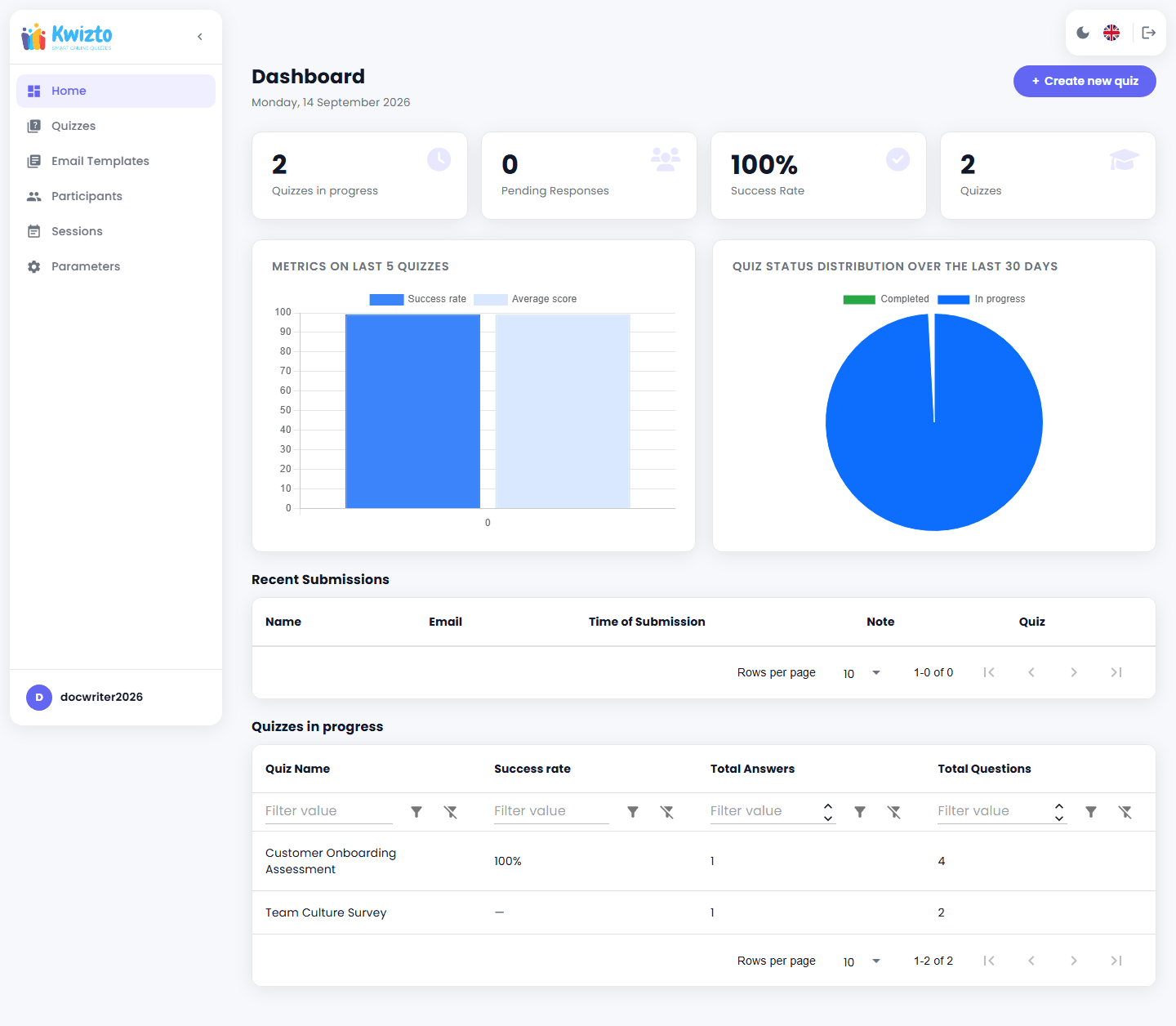
Your Home page (kwizto.com/app) shows: four KPI tiles (quizzes in progress, pending responses, global success rate, total quizzes), a bar chart comparing your last five quizzes' success rate and average score, a pie chart of quiz statuses, a Recent Submissions list, and a Quizzes in Progress list — plus a Create new quiz shortcut. Standalone accounts with no quizzes in progress and no submissions see a "Welcome to Kwizto!" banner instead.
2. Creating a Quiz (Both modes)
2.1 Quiz Basics
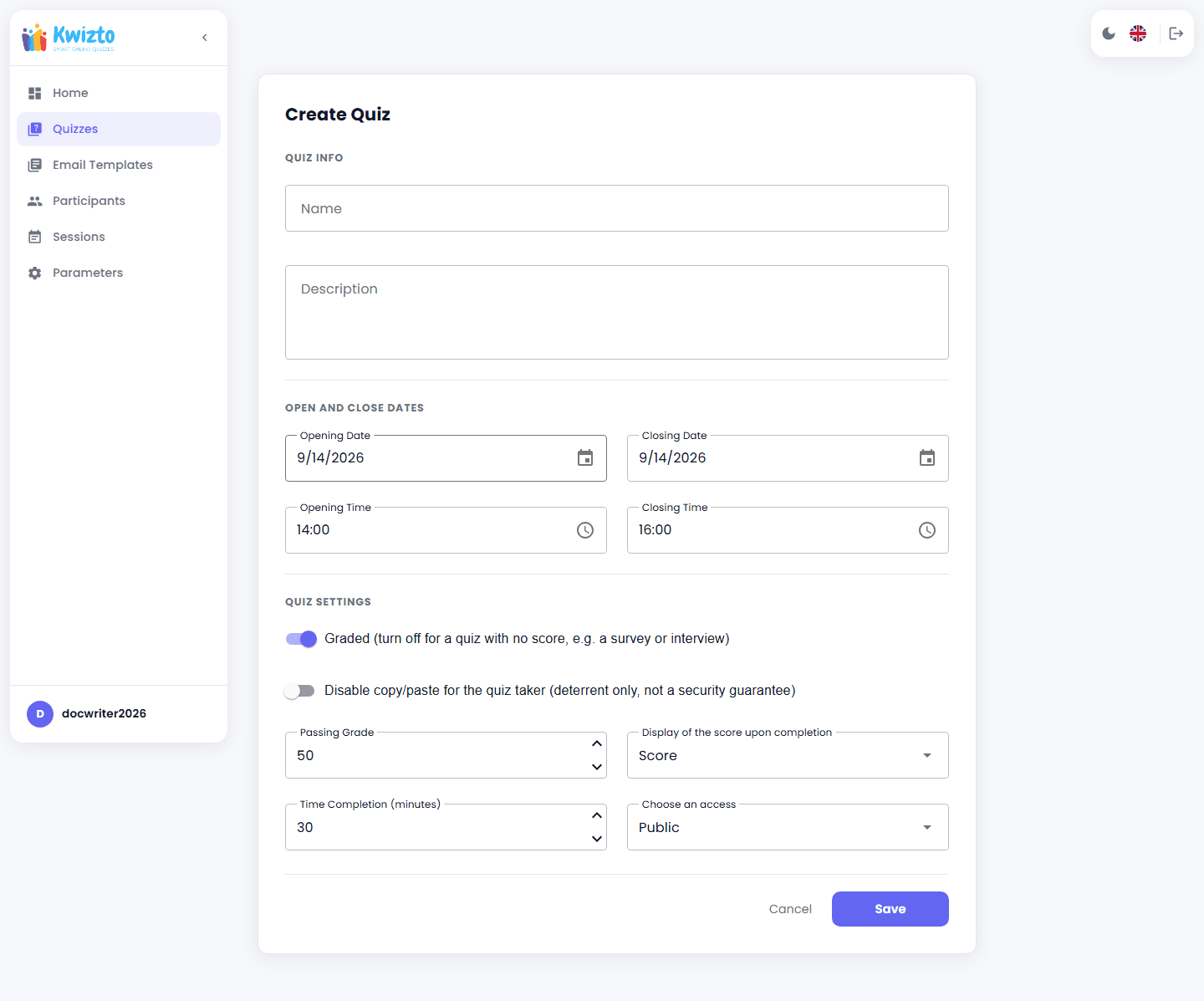
From the Quizzes list, click Create Quiz. Every quiz starts as a Draft — invisible and unsendable until you publish it. Fill in:
| Field | Purpose |
|---|---|
| Name | The title participants will see. |
| Description | Optional context shown before the quiz starts. |
| Opening Date/Time | When the quiz becomes available to take. |
| Closing Date/Time | When the quiz stops accepting attempts. |
| Display of the score upon completion | What the participant sees at the end: No Score, Score, or Detailed Score (full per-question breakdown). |
| Access | Public or Private. |
You can save a quiz as a Template instead — a reusable blueprint. Later, click Create Instance on a template from the Quizzes list to turn it into a real, schedulable quiz in one step. You can also Clone any existing quiz (or template) to start a new Draft from it.
2.2 Adding Questions
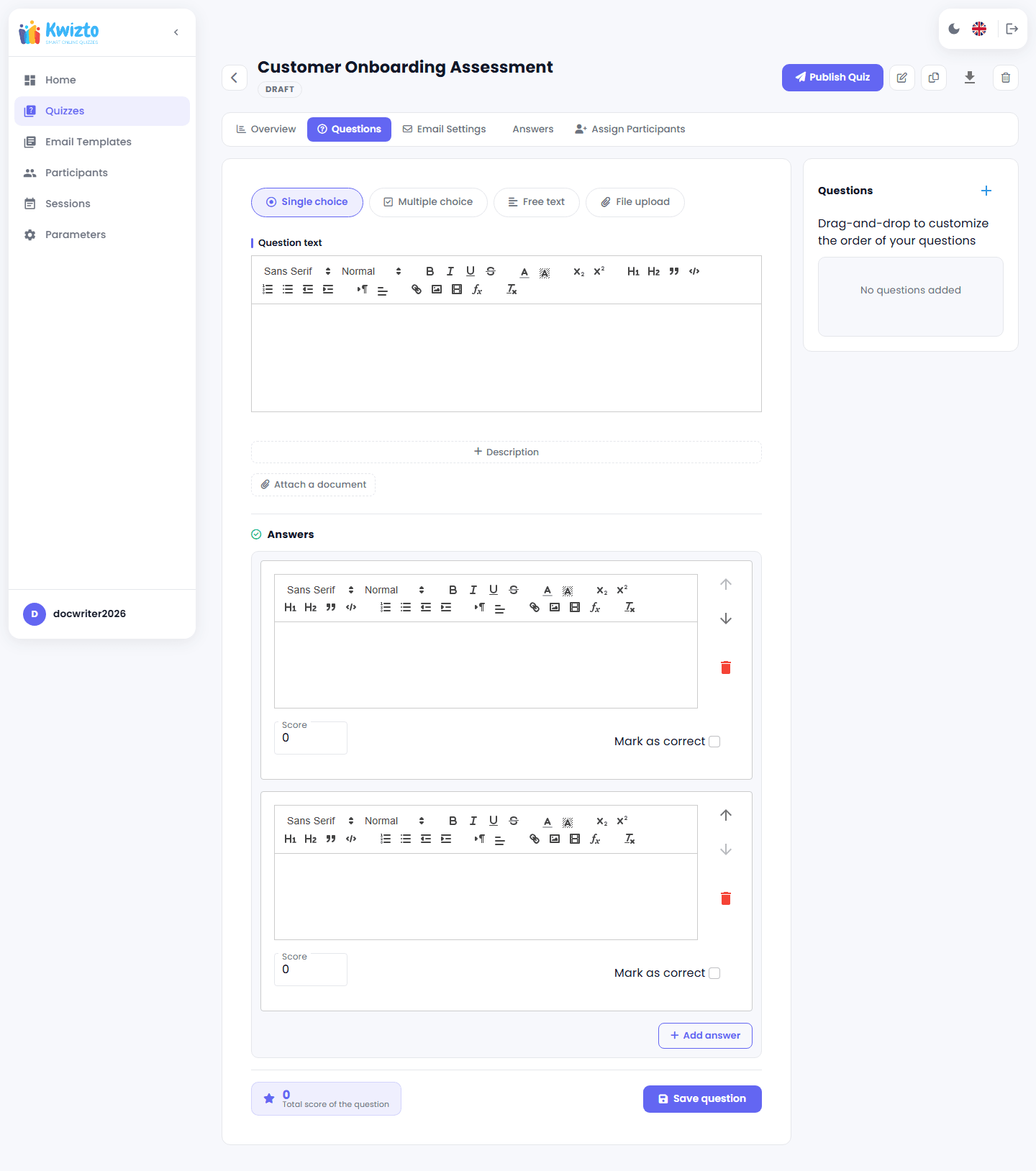
Open your quiz and go to the Questions tab. For each question:
- Enter the question text (rich-text formatting supported) and an optional description.
- Choose the Type:
- Single choice — exactly one answer must be correct.
- Multiple choice — more than one answer may be correct.
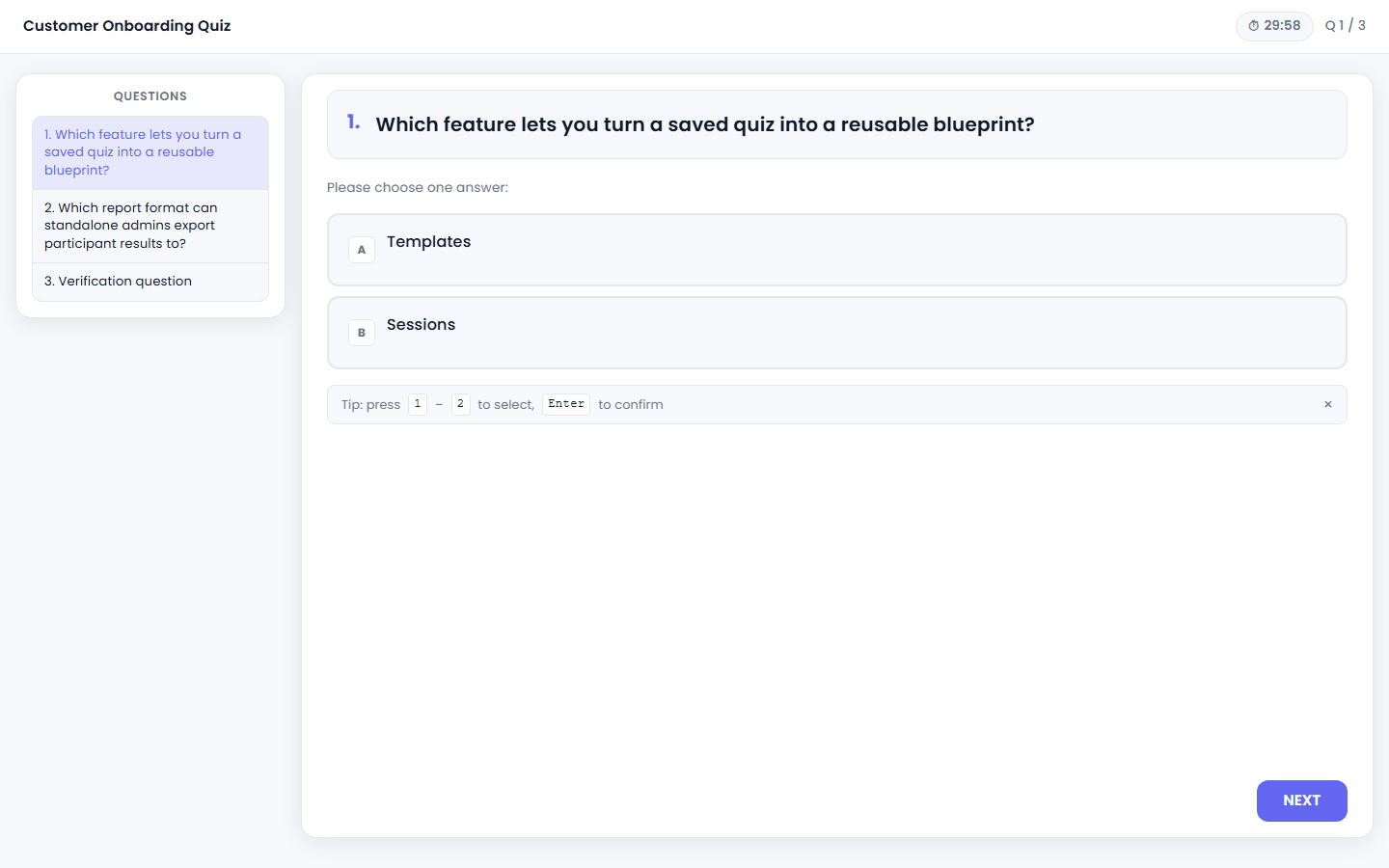
- Free text — the participant types a response in a plain textarea. There are no answer choices, no score, and no correct-answer requirement.
- File upload — the participant uploads a file as their answer (allowed types: .pdf, .doc, .docx, .ppt, .pptx, .png, .jpg, .jpeg, .svg, .mp3, .mp4, .webm, .wav, .m4a, .ogg; 25 MB max, configurable). Like Free text, there is no score or correct-answer concept.
- Audio — the participant records an answer with the browser microphone or drops an audio file (.mp3, .wav, .m4a, .ogg, .webm). Like Free text, there is no score or correct-answer concept.
- Add each answer choice with its own text, a Score (points it's worth), and a Mark as correct flag.
- Drag to reorder answers, and drag questions in the sidebar to reorder the quiz itself.
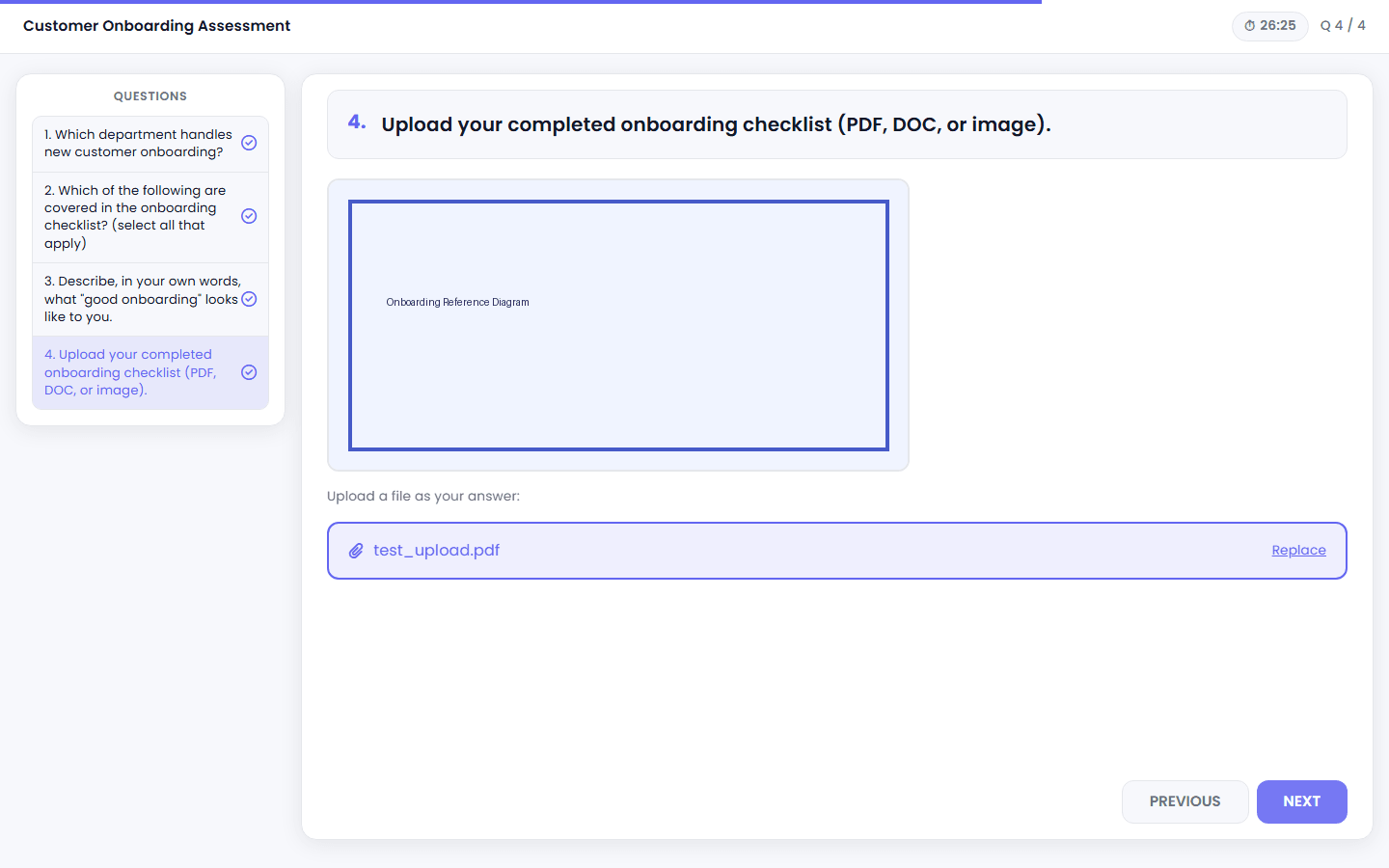
Any question, of any type, can also have an optional attached reference document (the paperclip Attach a document control in the question editor). It is shown to the participant after the question text and before the answer choices — inline preview for images/audio/video, a download link otherwise.
Five question types are available: Single choice, Multiple choice, Free text, File upload, and Audio.
2.3 Scoring Rules
Kwizto enforces two rules for Single choice and Multiple choice questions, but not both at the same point:
- A Single choice question can have only one answer marked correct — checked when you save the question.
- Every question needs at least one correct answer worth more than zero points — checked when you publish the quiz (Section 2.4), not when you save the question. A question can be saved without a valid correct answer and will only be caught at publish time.
- These two rules apply to Single choice and Multiple choice questions regardless of whether the quiz itself is graded or ungraded. Free text, File upload and Audio questions have no correct-answer concept at all and are exempt from both rules.
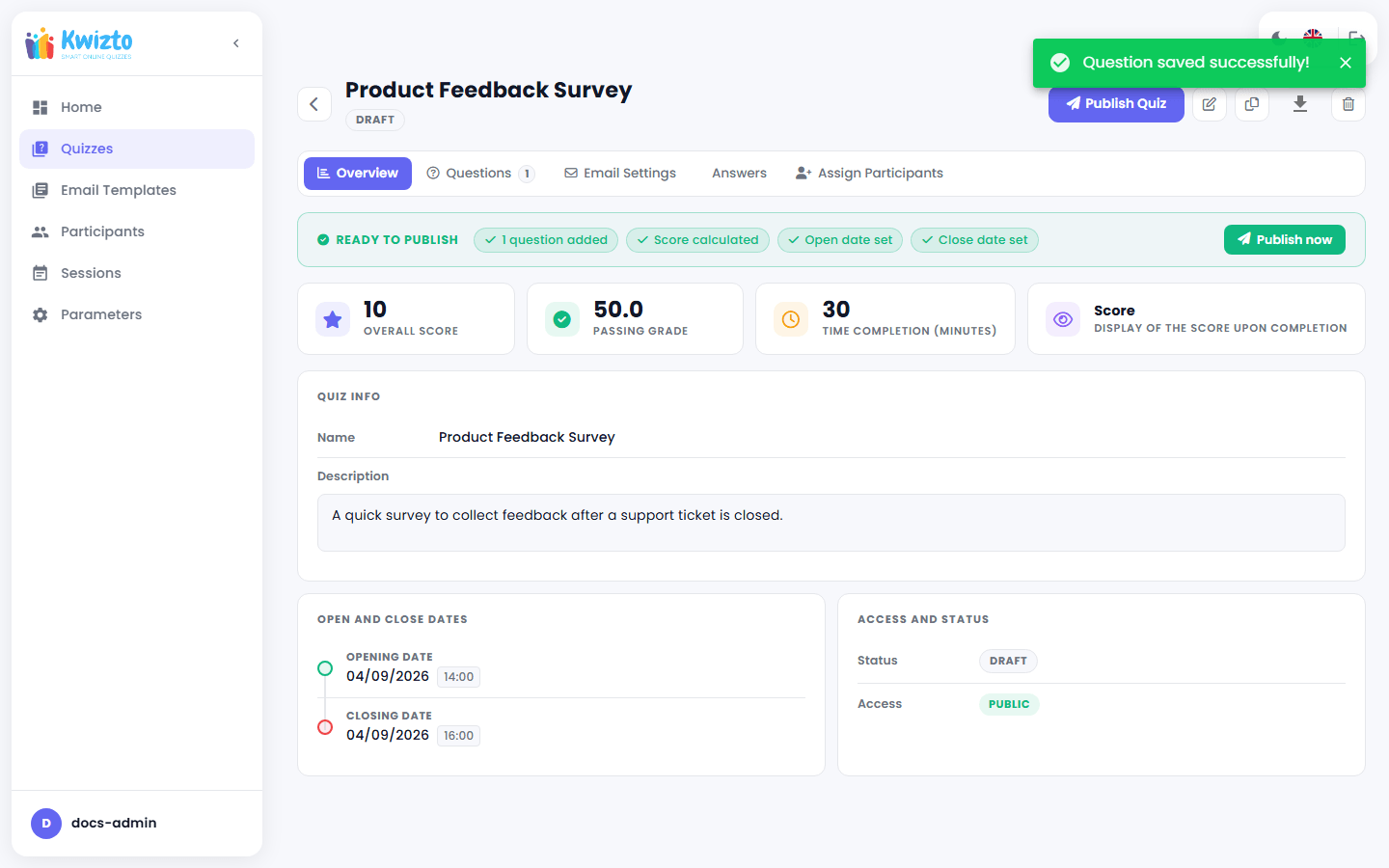
The quiz's overall score (the sum of every question's maximum score) is recalculated automatically each time you save a question. The passing score — the minimum a participant needs to pass — is confirmed when you publish the quiz (Section 2.4); it can never exceed the overall score. Afterward, it can only be changed from the quiz's Edit page — the Overview tab is read-only.
2.4 Publishing a Quiz
On the quiz's Details page, a readiness checklist appears while the quiz is a Draft, tracking what's still needed: at least one question, a calculated score above zero, an opening date, and a closing date. Once everything is satisfied, click Publish now (or Publish Quiz from the header at any time) and confirm the passing score.
Publishing double-checks that your email templates contain the required link placeholders (Section 4) — you can't publish without them. In standalone mode, if no email-sending method is configured (Section 7.1), you'll be warned that emails won't actually go out and asked to confirm you want to publish anyway.
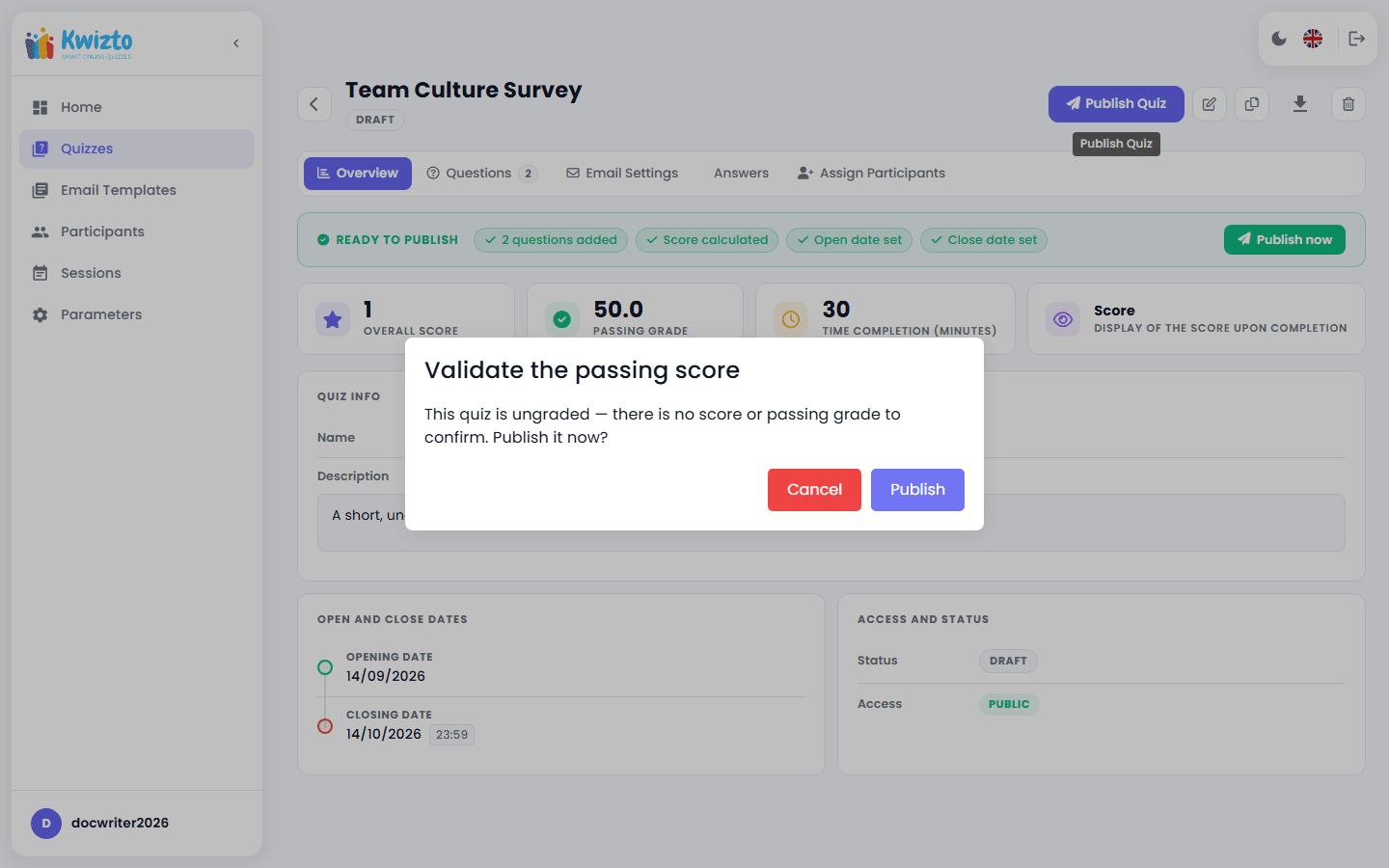
For an ungraded quiz, the confirmation dialog does not ask you to confirm a passing score — since there is none to confirm, it simply reads: "This quiz is ungraded — there is no score or passing grade to confirm. Publish it now?"
A quiz only ever has two real statuses: Draft and Published. There's no separate "Closed" state — once a published quiz's closing date passes, it simply stops accepting attempts. The "Live" indicator on the Details page stays on until one day after the closing date (a one-day grace period), then turns off.
2.5 Editing, Cloning, and Deleting
- Modify Quiz changes a quiz's name, dates, score display option, access, or passing score.
- Unpublish quiz reverts a Published quiz back to Draft — but only while the quiz is not open. It does not cancel any emails already queued; any invitation, reminder, or results emails already scheduled will still send.
- Clone Quiz creates a new Draft copy, including its questions and email templates.
- Delete Quiz permanently removes the quiz after a confirmation prompt.
- Export (standalone mode only) downloads participant results as Excel or CSV directly from the Details page.
3. Assigning Participants
3.1 Cirrus Shield mode — Sending From Inside Cirrus Shield
Standalone-style participant management doesn't apply here. Instead:
- First, connect the quiz to the right Cirrus Shield object type(s) — open the quiz's Connection Cirrus Shield tab and select which objects (Contact, Lead, etc.) it applies to. Kwizto only lists objects that have an email field available, directly or on a related child object. For each object type, the Add option field lets you choose Single add (the button appears on the object's own record) or Bulk add (the button appears on a parent record instead, revealing an extra Associated List field to pick which related child list to pull participants from — for example, every Contact linked to an Account).
- From inside Cirrus Shield, open the record (or records) you want to invite, and use the action that opens Kwizto's Associate screen for that record.
- Pick the quiz you want to send — only quizzes connected to that record's object type will appear. You can filter by status and by date, and search by name.
- Click Associate to send it.
Kwizto then automatically: resolves the email address(es) on that record (and any linked child records), creates or reuses a matching participant, schedules the invitation (and reminder/results emails if configured), and writes the quiz-and-participant link back into Cirrus Shield — which is what allows results to be written back later (Section 6.1).
3.2 Standalone mode — Managing Your Own Participant List
Training Sessions
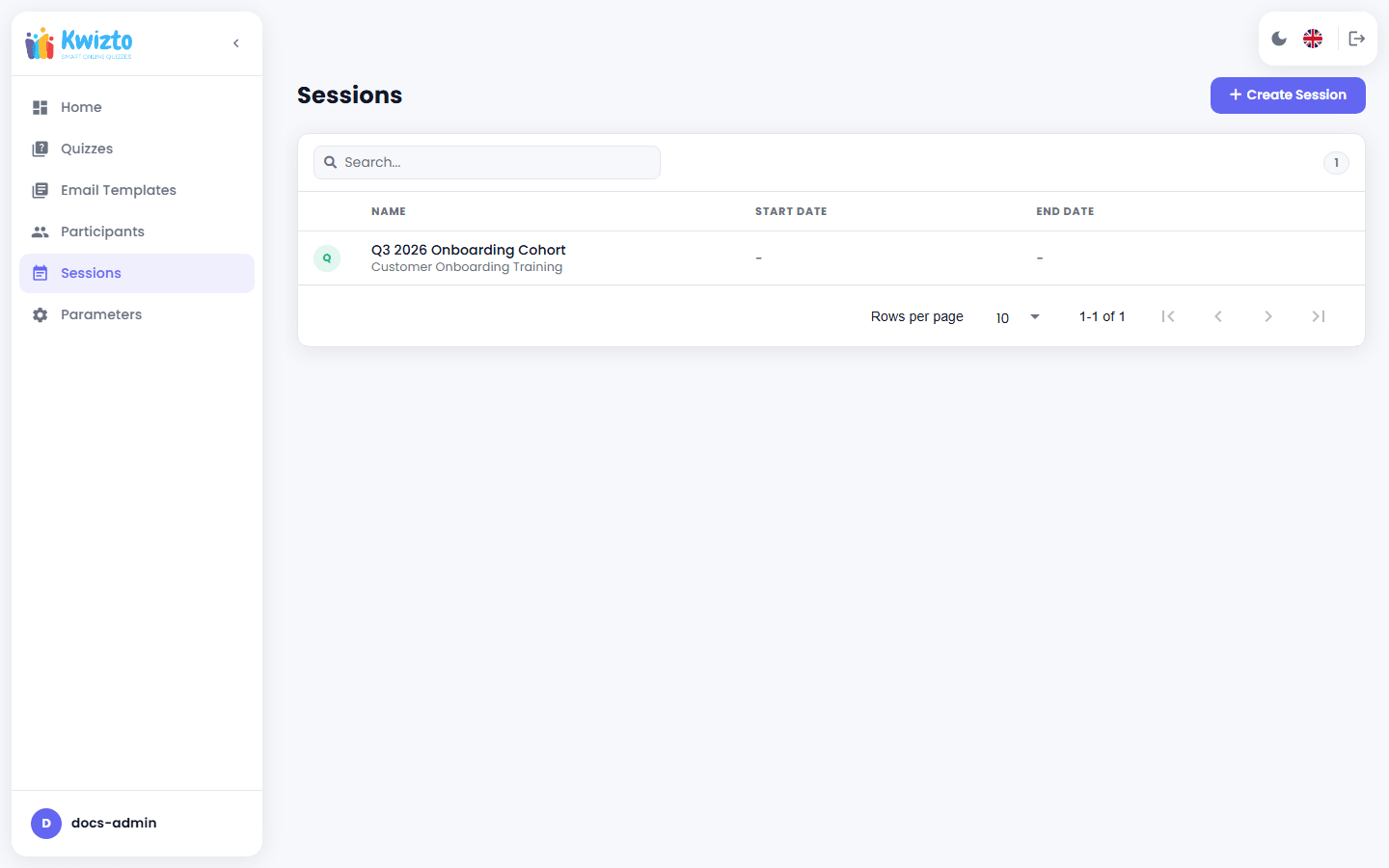
Go to Sessions to group participants (by cohort, department, date, etc.). Create Session and Edit manage sessions; a session can't be deleted while participants remain assigned to it.
Participants
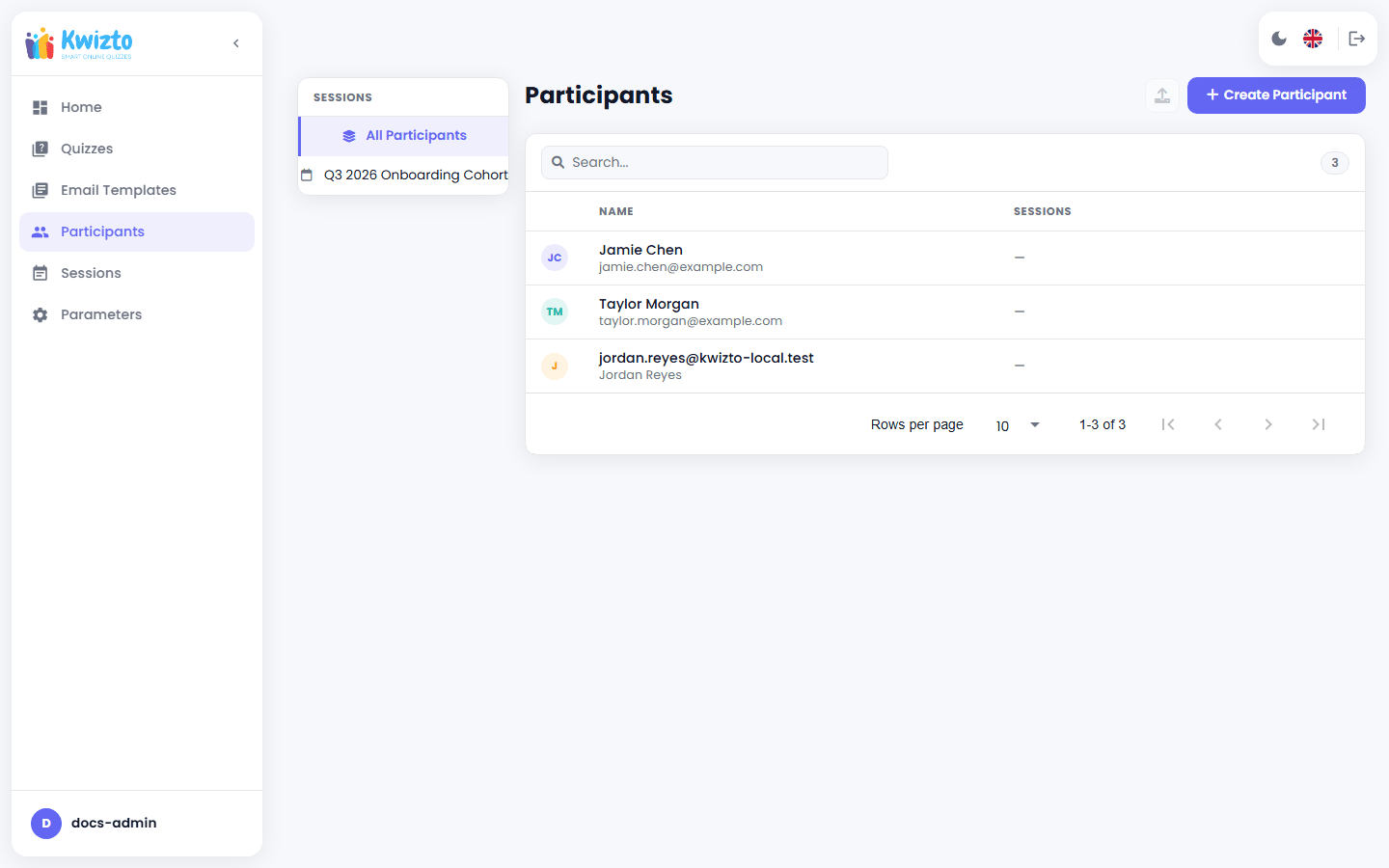
Go to Participants to manage your address book: Create Participant to add a single participant, Import CSV to bulk-add a list into a chosen Session, Edit to update details, and Delete to remove someone (blocked if they already have quizzes assigned, to protect their results). Click a participant to see their full history of assigned quizzes and results.
Assigning a Quiz
Either:
- Select participants on the Participants page and click Send Quiz to bulk-assign one quiz to everyone selected; each of them is immediately sent an invitation email, or
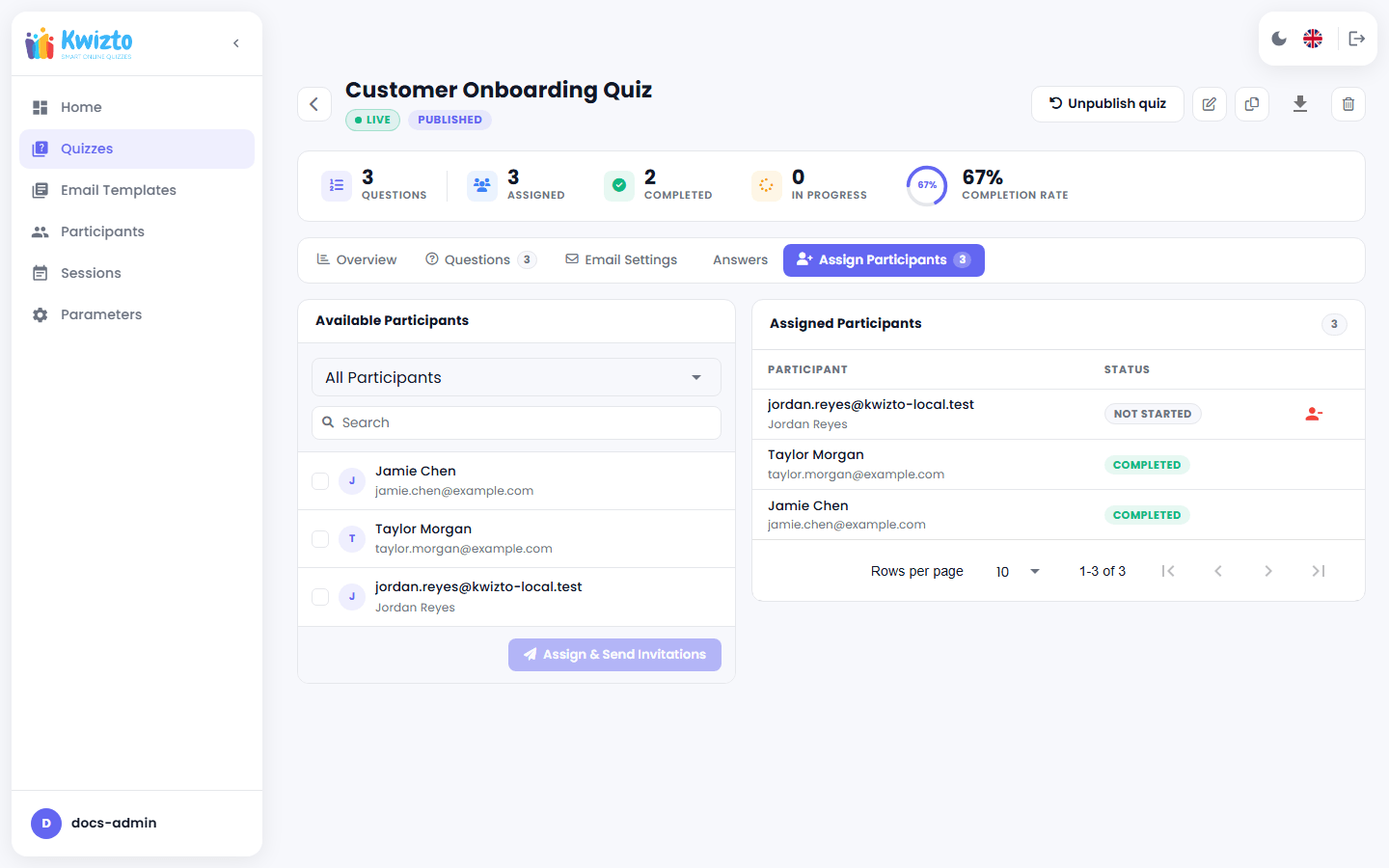
- Go to the quiz's Assign Participants tab, where the left panel lists available participants (searchable, filterable by Session) with checkboxes, and the right panel shows who's already assigned along with their status. Click Assign & Send Invitations to add selections; each of them is immediately sent an invitation email. You can remove anyone from the right panel as long as they haven't started.
4. Sending Invitations and Reminders (Both modes)
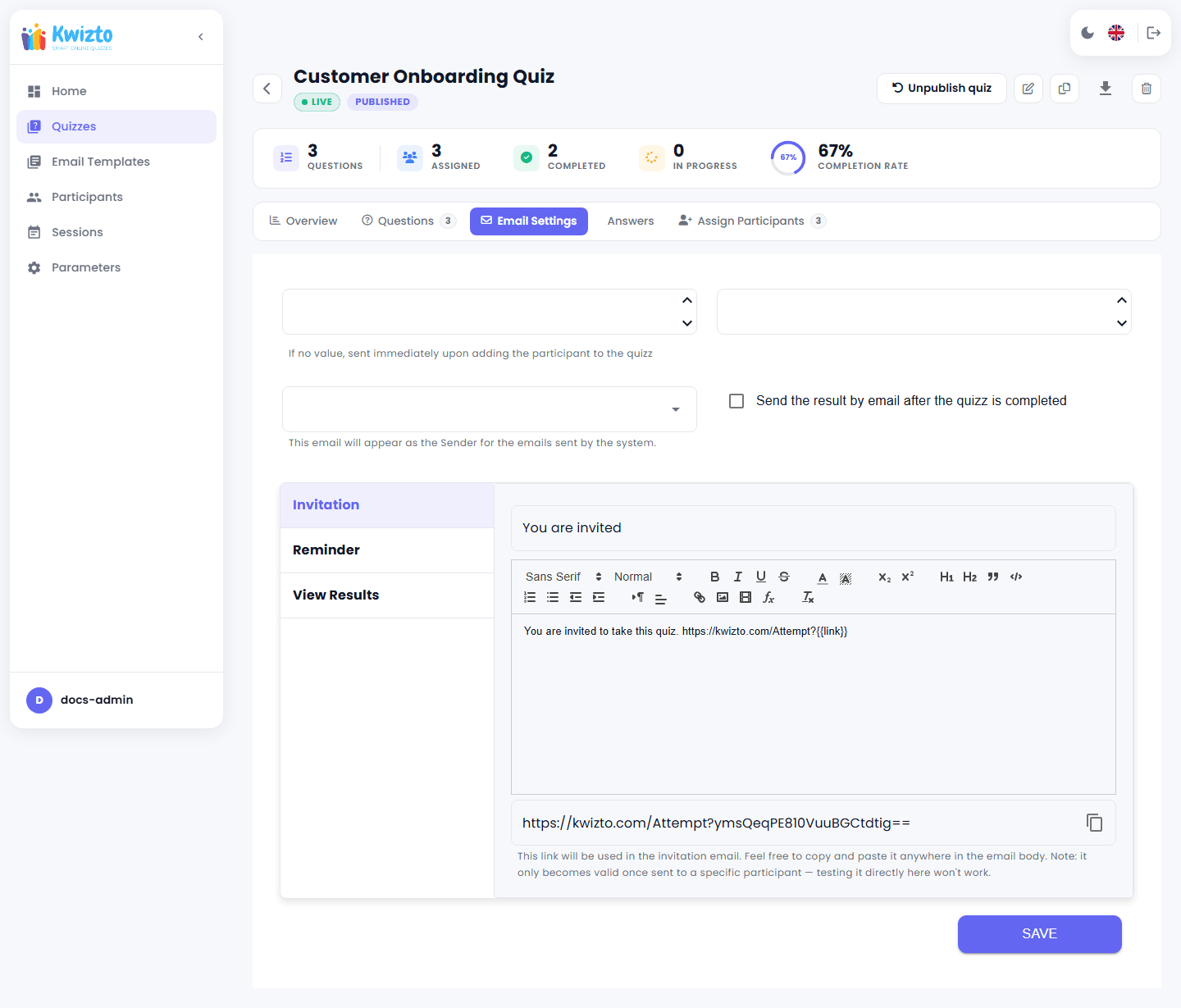
Each quiz has its own Email Settings tab where you configure a From address and three templates (subject + rich-text body):
| Sent when | |
|---|---|
| Invitation | At the quiz's opening date. If a delay (in hours) is set, the invitation email is sent that many hours before the opening date. Each participant gets a unique, personal link. |
| Reminder | Only if the quiz has an opening date, a closing date, and a reminder frequency (in hours) all set. Reminders repeat on that cadence until the quiz closes, and stop automatically for a participant the moment they start the quiz. |
| Results | Only if "Send the result by email after the quizz is completed" is enabled. Sent at the closing date, with a personal link to the participant's own results. |
Rather than writing a template from scratch each time, pull one from your organization's reusable email template library, shared across every quiz, and adjust it as needed.
Behind the scenes, a background process checks periodically for emails that are due, sends them, and retries failed attempts a limited number of times before marking a message as failed — so an invitation that never arrives is usually a sign of an email configuration problem (Section 7.1, standalone mode) rather than something wrong with the quiz itself.
5. The Participant Experience (Both modes)
This section covers what the person receiving the quiz sees and does — no account or login is required on their end.
5.1 Receiving and Opening the Link
The participant receives the Invitation email at your configured send time, containing a unique link that identifies them personally — this link is all they need; there's no separate login step. Opening it shows the quiz name, description, number of questions, estimated duration, and (if set) the closing deadline, along with a note that once started, the quiz cannot be paused or restarted — though if they lose their connection and reconnect, they're returned to exactly where they left off (the timer keeps running while they're away).
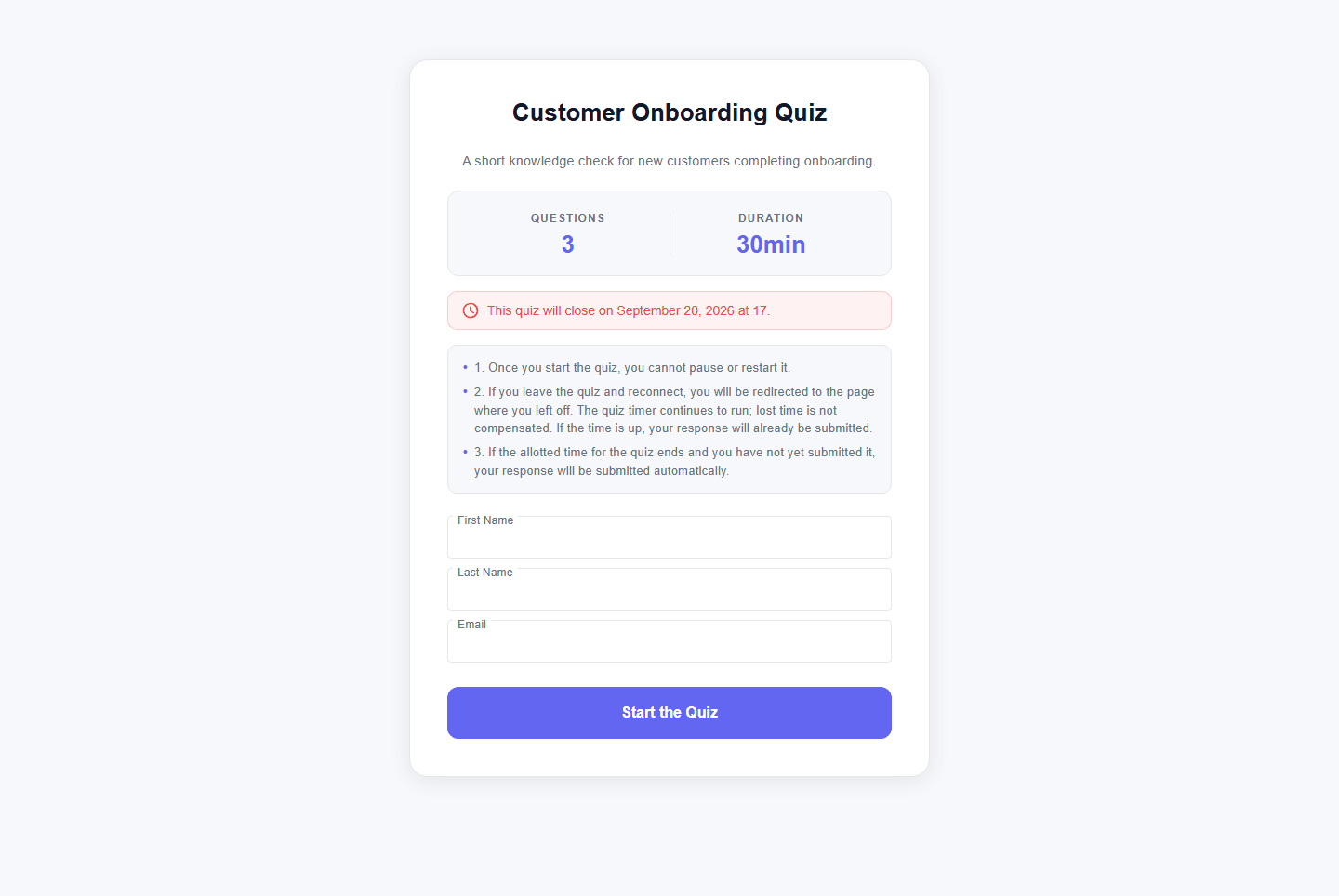
Depending on timing, the participant may instead see a message that the quiz:
- isn't published,
- hasn't opened, or
- has already closed.
A fourth case — no attempts remaining for that participant — isn't visible on first landing like the other three; it only appears after they click Start the Quiz and Kwizto discovers no attempts are left.
5.2 Taking the Quiz
Clicking Start the Quiz begins the attempt and immediately stops any further reminder emails for that participant. Questions are shown one at a time, with a progress bar and a live countdown timer at the top of the screen (based on the quiz's time limit and its closing date, whichever is sooner), and a question navigator listing every question in a left sidebar. The participant selects an answer (or answers, for Multiple choice questions) by clicking, or using number keys and Enter/arrow keys as shortcuts; each answer is saved automatically as they move between questions, and they can navigate back to review or change earlier answers. If they close the browser and come back later, they resume exactly where they left off. If time runs out, their current answer is saved and the quiz submits automatically.
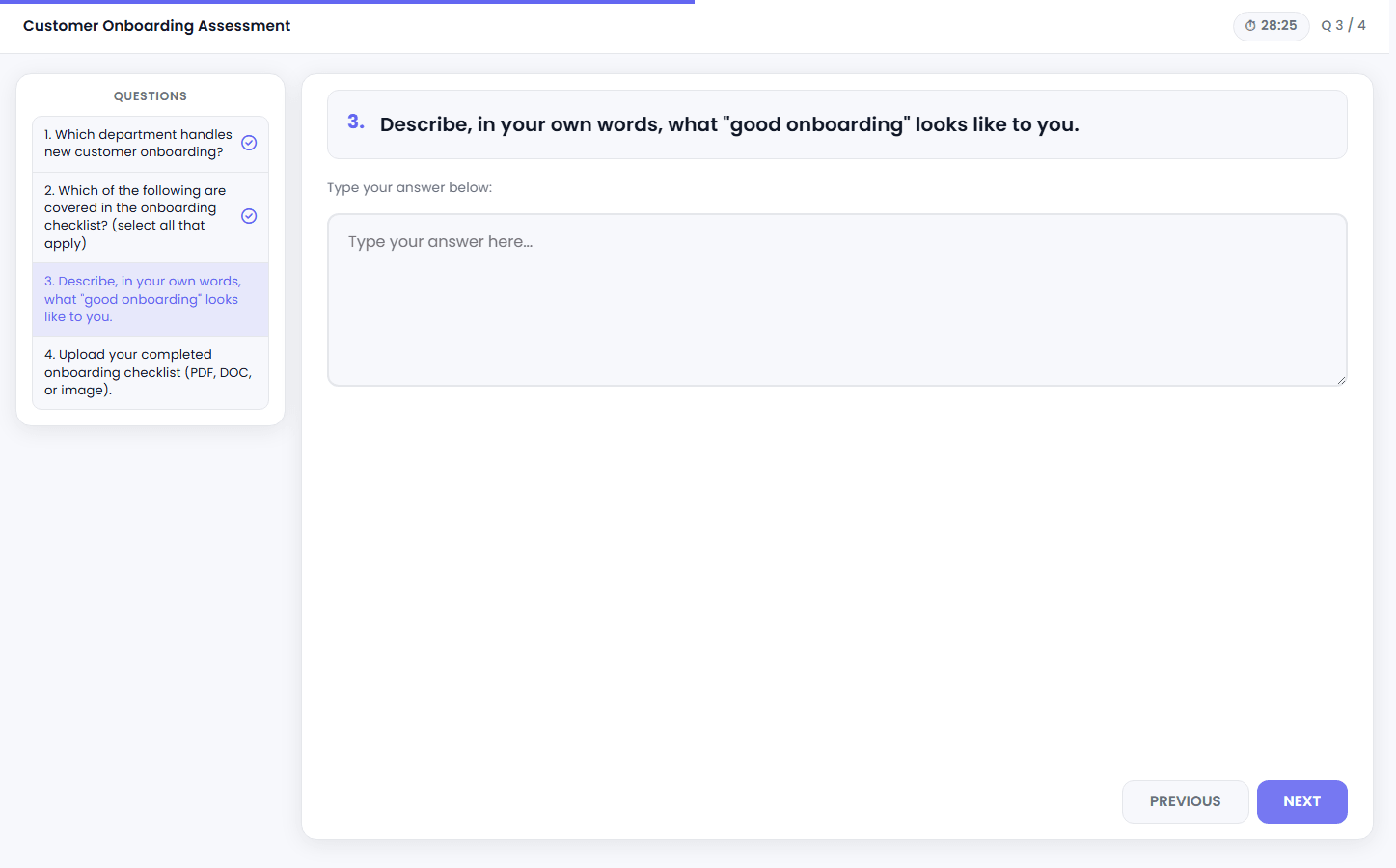
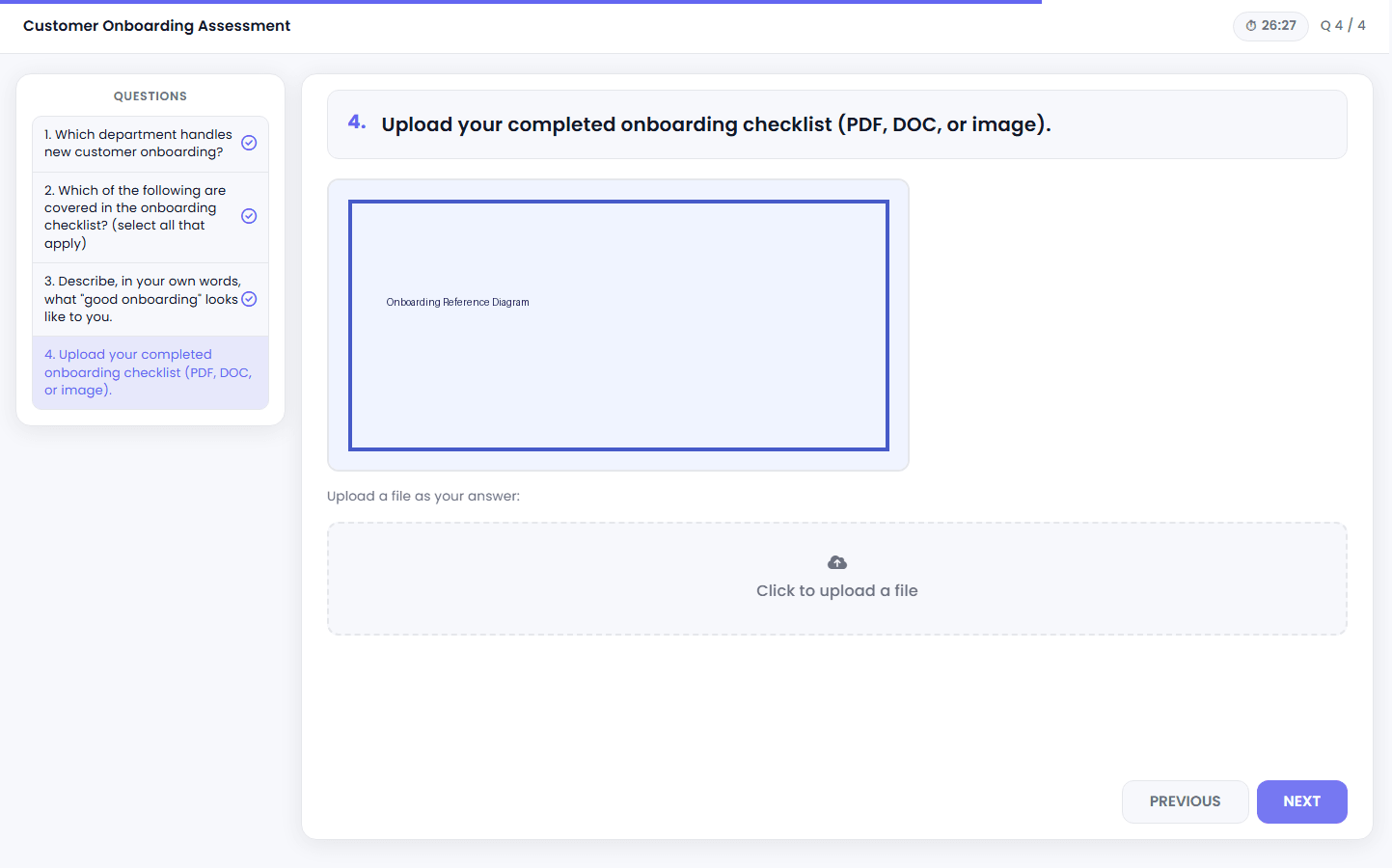
A Free text question shows a plain textarea instead of answer cards; it auto-saves on navigate and is restored on return, the same as a choice answer. A File upload question uploads the file immediately on selection (not deferred to Next like other types) and, once uploaded, shows the filename with a Replace option. An Audio question ("Record an answer or drop an audio file:") lets the participant record with the microphone using Record / Stop recording, or drop an audio file; if recording isn't supported or microphone access is denied, they can still drop an audio file. If the admin attached a reference document to a question, it renders after the question text and before the answer choices — inline for images/audio/video, as a download link otherwise — for any question type. If the admin enabled the copy/paste guard on the quiz, copy, cut, paste, and right-click are silently blocked during the attempt, with no on-screen message. A rejected file upload (wrong extension, too large, a failed malware scan, or a server error) shows a specific reason via an on-screen notification.
A Free text question, and a File upload question before and after uploading (with an attached reference document rendered after the question text):
5.3 Reviewing and Submitting
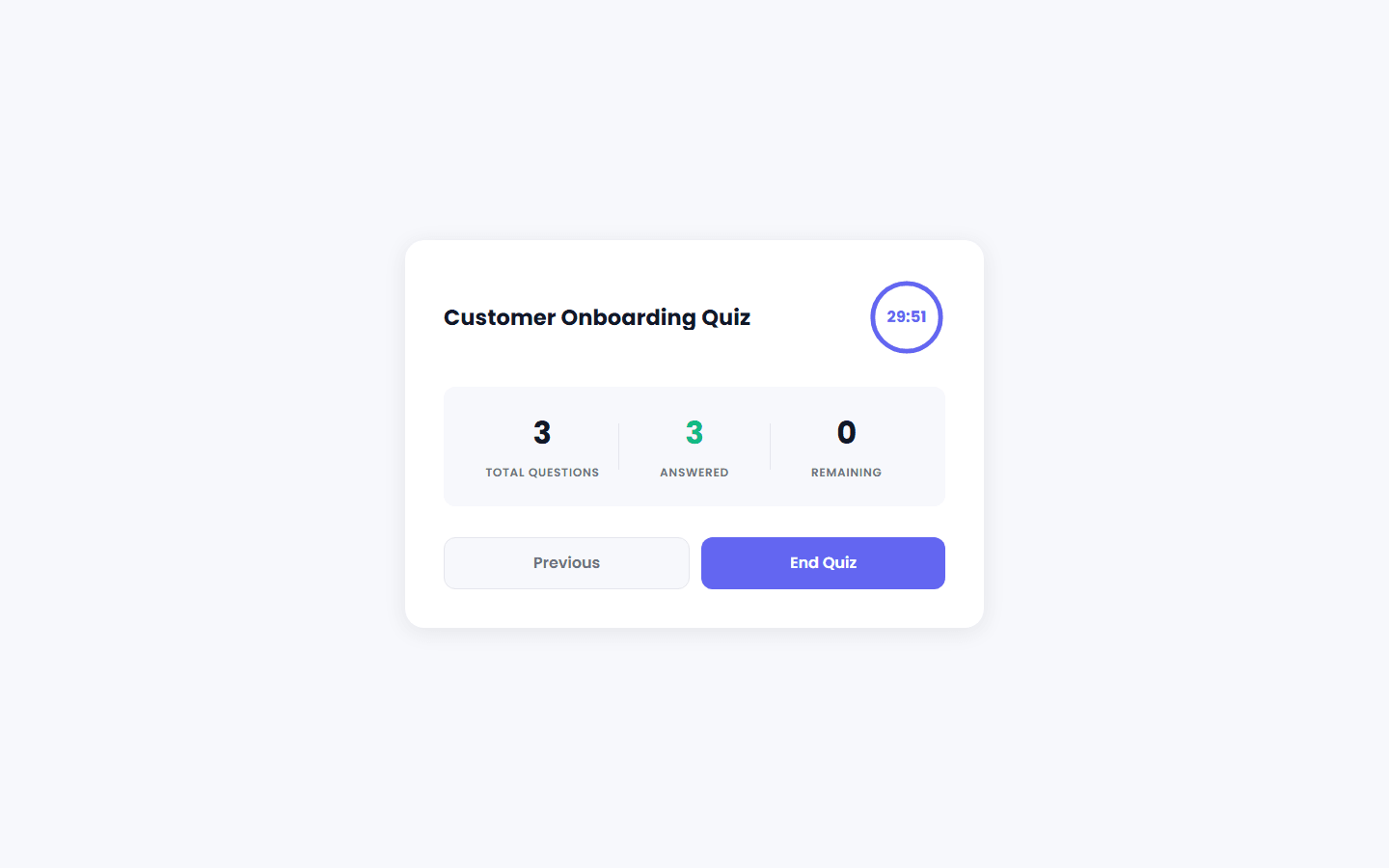
After the last question, a recap screen summarizes which questions are answered or unanswered along with remaining time, before the participant confirms final submission.
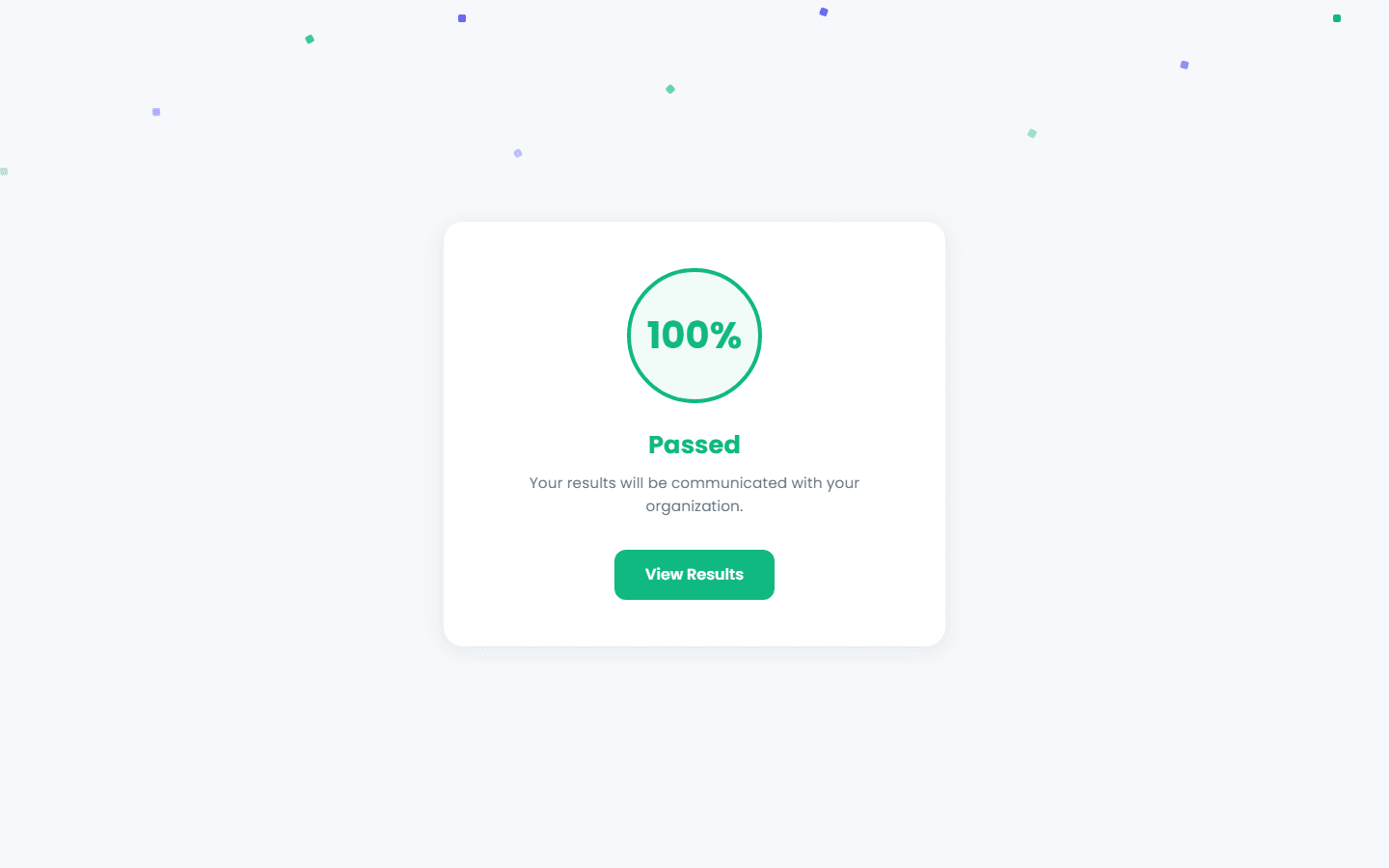
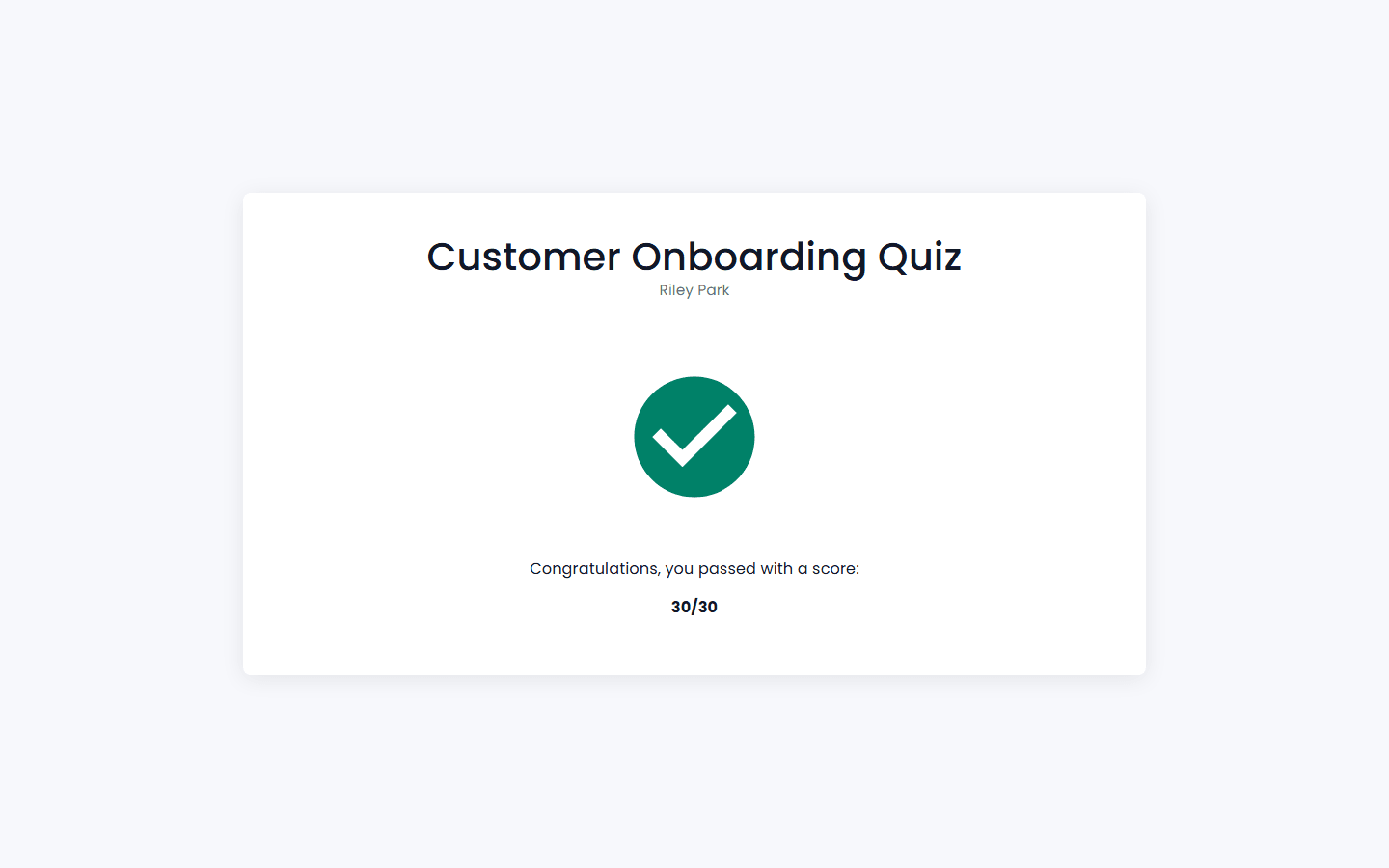
5.4 Seeing Results
What the participant sees immediately after submitting depends on the quiz's score display option (Section 2.1):
- No Score — no score information is shown at all.
- Score — an overall score and pass/fail result only.
- Detailed Score — an overall score and pass/fail result, plus a link to a full results page showing, question by question, what they scored and which answers were correct, incorrect, or missed.
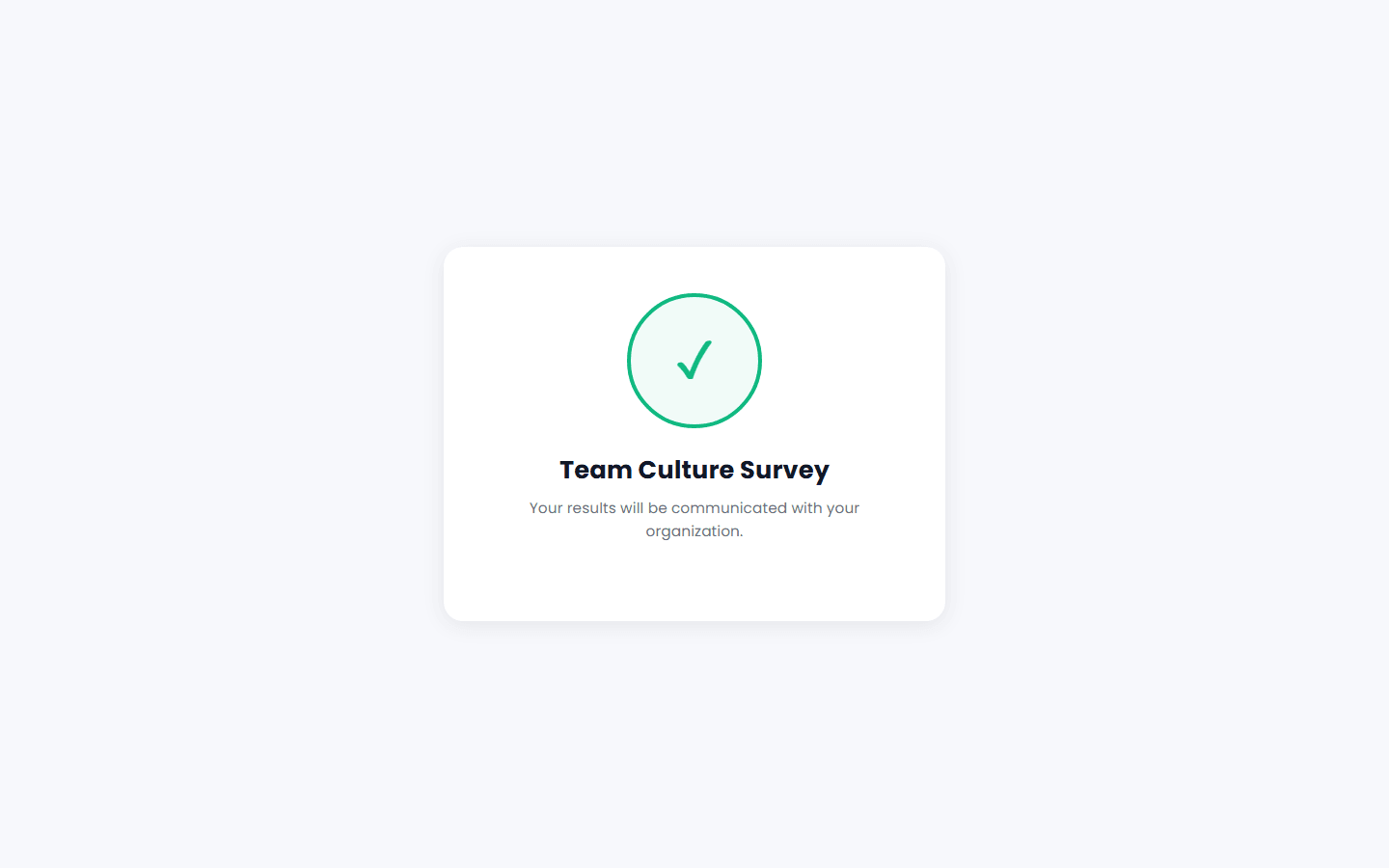
For an ungraded quiz (or a quiz using the No Score display option), the participant instead sees a distinct "Submission Complete"-style completion card — no score, no pass/fail, just a confirmation that their answers were recorded — and the View Results button is hidden, since there is no score-based result to view.
If you've enabled "Send the result by email after the quizz is completed", the participant also receives a separate Results email (with its own personal link) at the quiz's closing date, so they can revisit their results later.
5.5 Language
The participant-facing screens are available in English and French. The language shown is not tied to the participant's account: it is a per-browser setting — the language last chosen with the language selector in that browser, French by default. Pages opened from Cirrus Shield links carry the language in the link itself.
6. Viewing Results and KPIs (Both modes)
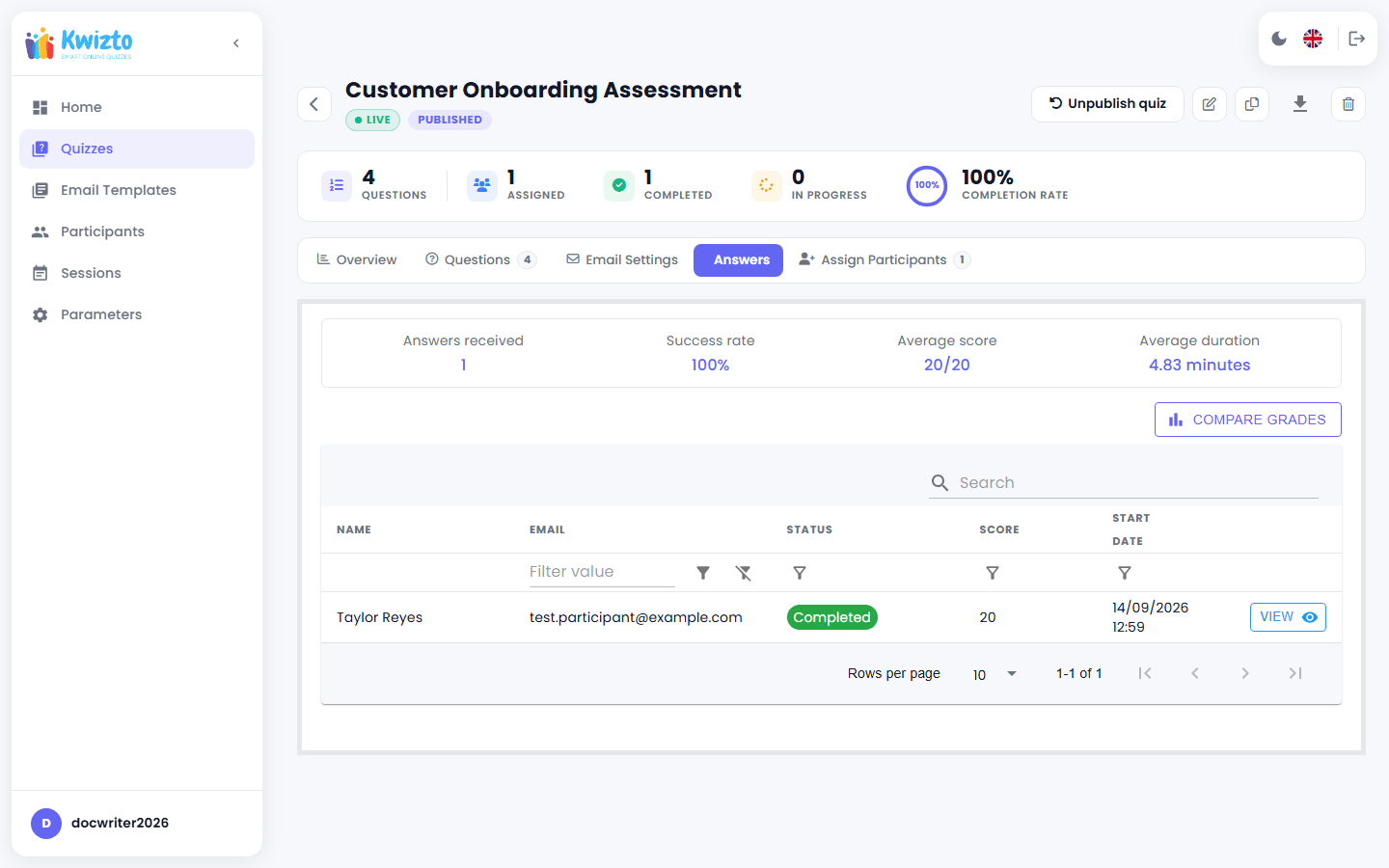
Each quiz's Participants tab (second tab on the Details page) lists every participant's status (Not started / In progress / Completed) and score, with drill-down into individual attempts.
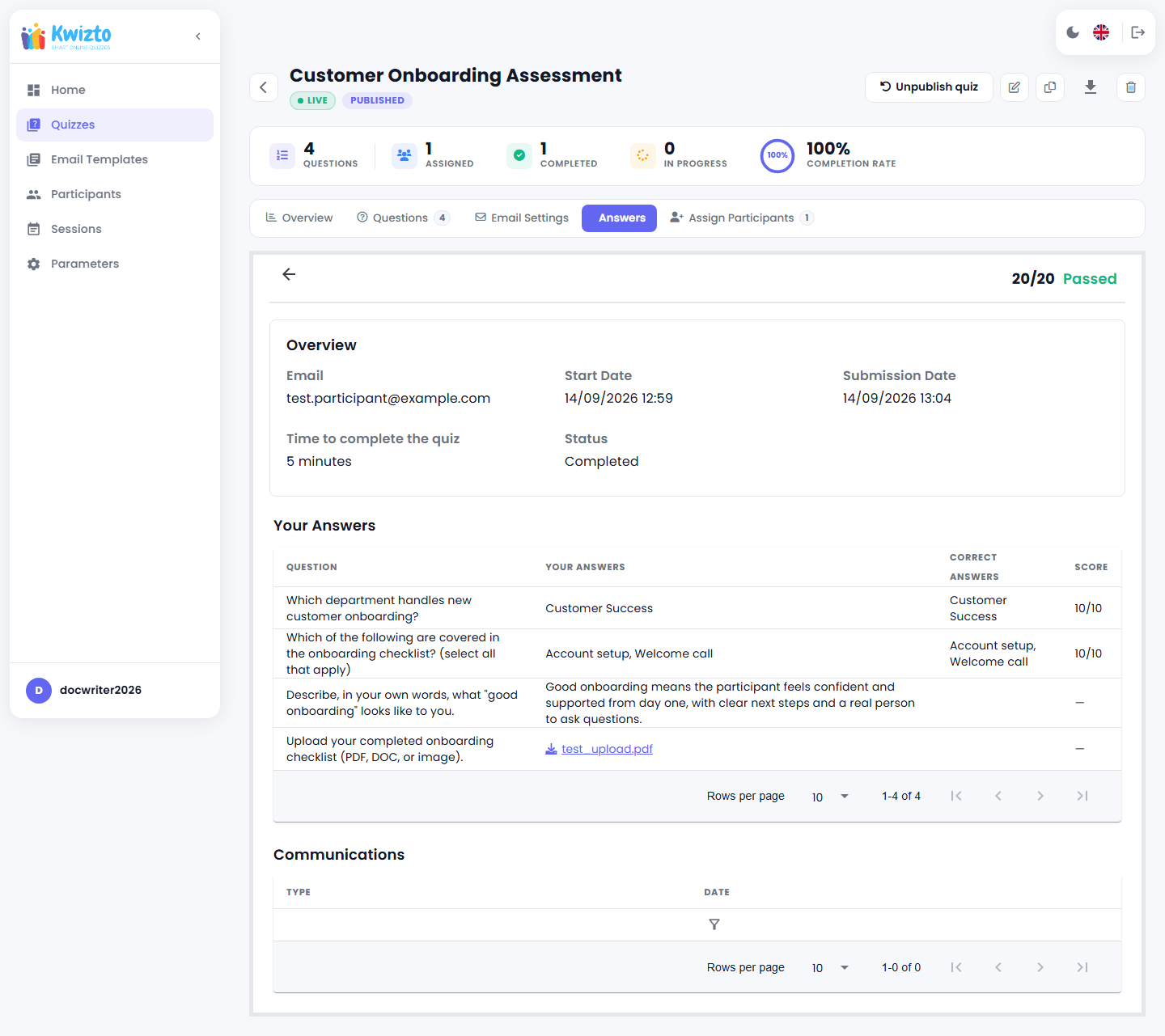
For an ungraded quiz, the Success Rate and Average Score tiles and the Score column are hidden entirely from the Participants tab — there is nothing to grade. For a Free text, File upload or Audio answer (or any answer on an ungraded quiz), the Score column shows an em dash (—) instead of a fraction. A File upload answer appears as a click-to-download link rather than an inline preview, since the download endpoint requires the admin's own sign-in and can't be embedded directly as an image.
A completed participant's answer detail, showing a choice question's normal score alongside a Free text answer and a File upload answer (both scored —):
Per-quiz KPIs — total responses, success rate, average score, and average completion time — are shown right on the quiz.
The Home dashboard (Section 1.4) rolls these up across your whole organization: quizzes in progress, global success rate, pending responses, and a trend chart across your most recent quizzes.
Standalone mode additionally offers Export to Excel or CSV directly from the quiz's Details page.
6.1 Results Write-Back to Cirrus Shield (Cirrus Shield mode)
When a participant sent from a Cirrus Shield record finishes their quiz, Kwizto automatically writes a completion status (QuizStatus) and the completion date (QuizCompletionDate) back to Cirrus Shield — on the QuizParticipant record that links the participant to the originating record — and, for a graded quiz, their score (QuizScore) as well, with no manual step required. This happens whenever a valid Cirrus Shield token is available for your organization, including for participants assigned through the Associate flow (Section 3.1). An ungraded quiz has no score to write back, so only the status and completion date are updated. If the write-back cannot complete for any reason (for example, no valid Cirrus Shield token), the participant's own result inside Kwizto is not affected.
7. Parameters and Templates
7.1 Email Sending (Standalone mode)
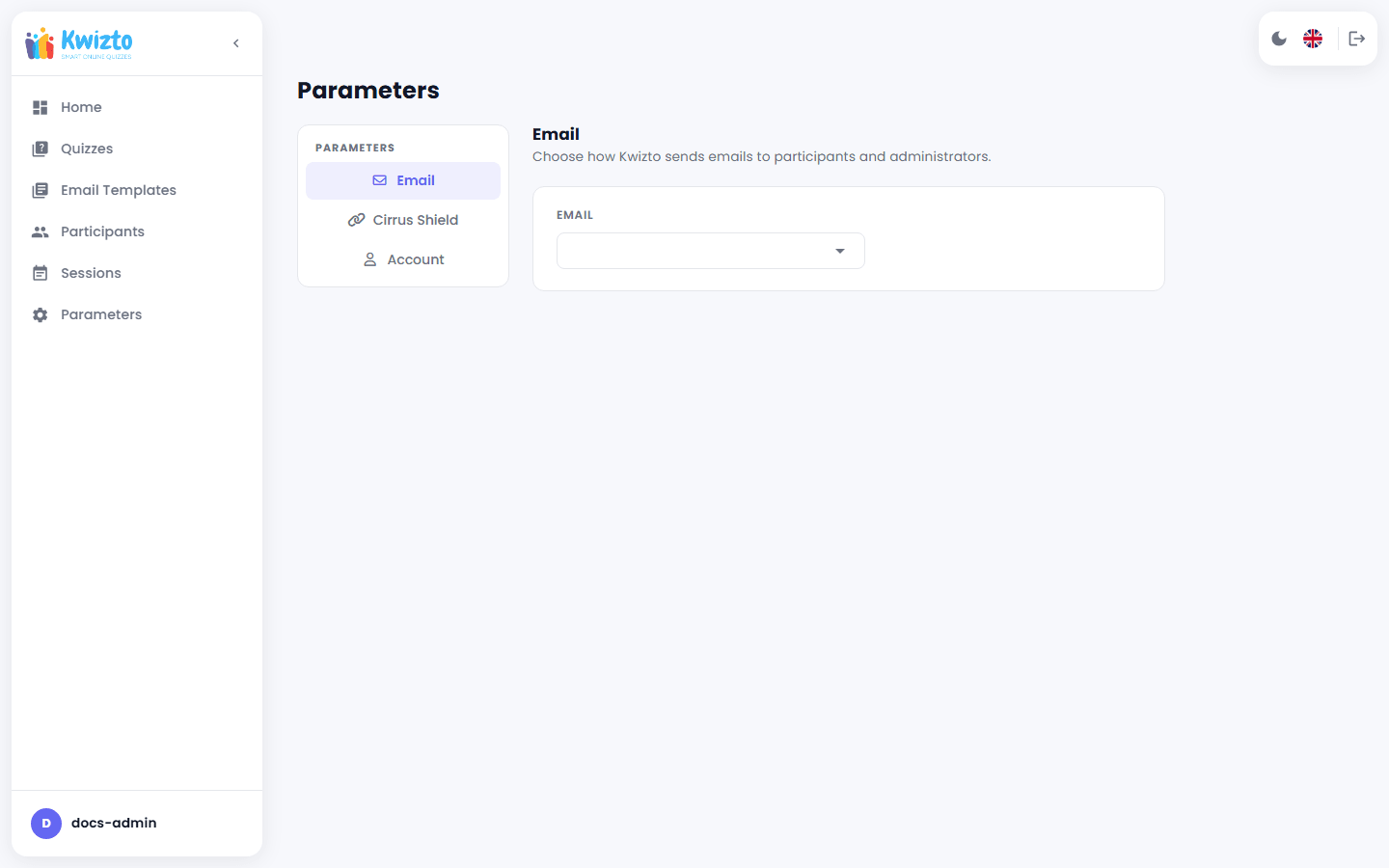
Go to Parameters > Email to choose how Kwizto sends your emails: SMTP (host, port, credentials, sender name/address, SSL, with Save and Test Connection buttons), or OAuth-based Gmail/Hotmail connections. Switching between methods clears the previous configuration, so be ready to fully reconfigure when you switch. (Cirrus Shield-mode organizations don't need to configure this — email sending is already part of your Cirrus Shield setup.)
7.2 Connecting to Cirrus Shield (Standalone mode, optional)
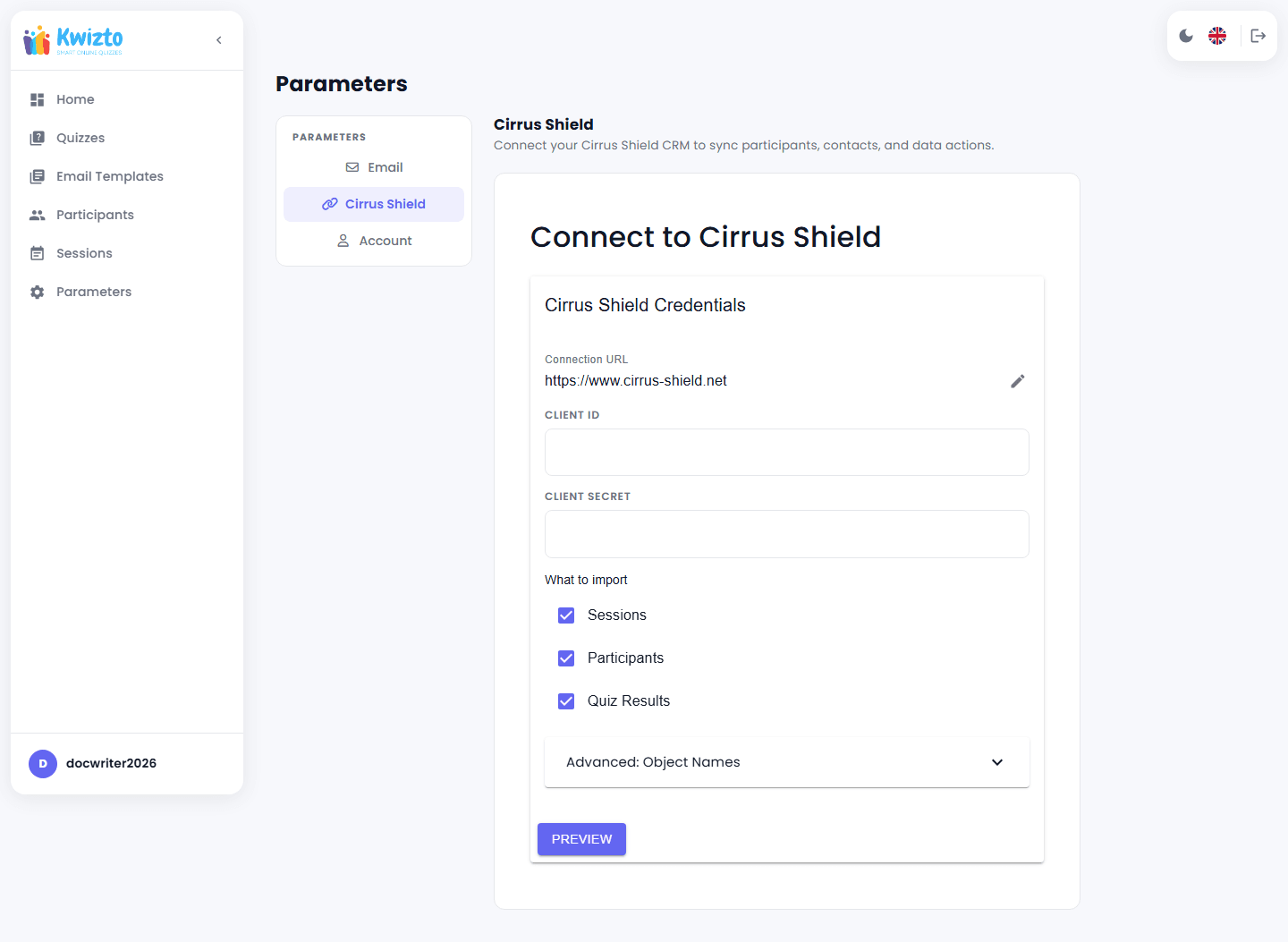
If you'd like to optionally sync data with an existing Cirrus Shield organization, the Cirrus Shield section of Parameters includes a connection wizard. Once connected, you'll see a "Connected since" confirmation and can manage which Cirrus Shield object types (e.g., Contact, Lead) stay in sync, with a "Danger Zone" option to disconnect at any time. This is entirely optional and doesn't affect your ability to run quizzes on your own participant list. This is the same wizard covered in Section 7.4 below — it asks for a Cirrus Shield Confidential Connected App's Client ID and Client Secret, not a Cirrus Shield username and password.
7.3 License and Account (Standalone mode)
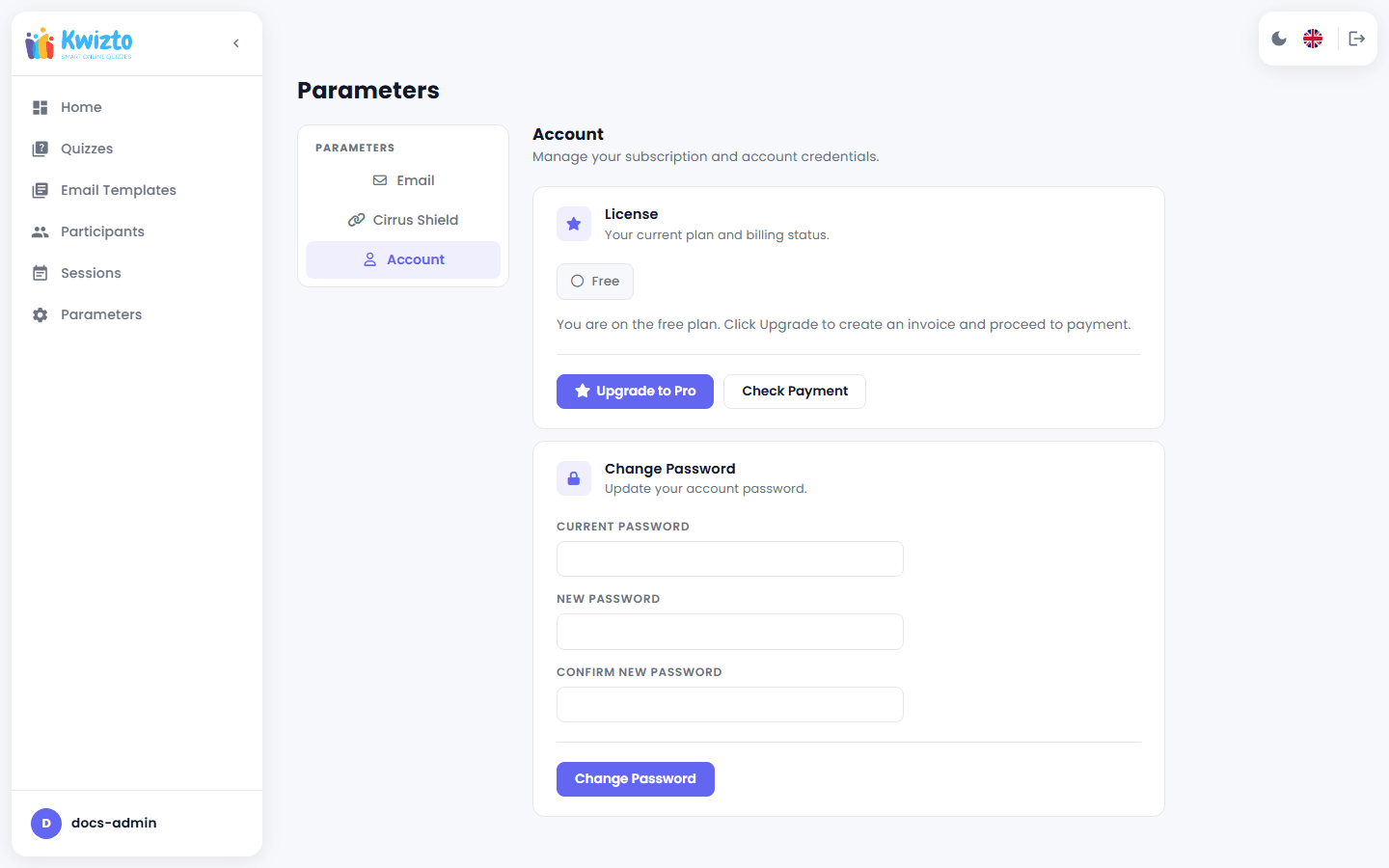
Parameters > Account shows your current license — a "Pro" badge with the date it's valid until, or a "Free" badge if you're on the free plan (there's no separate active/inactive indicator or countdown of remaining days) — and lets you change your password. Click Upgrade to Pro to create a billing invoice and pay securely via Stripe; once paid, return and click Check Payment to activate your Pro license. If a license message blocks your sign-in, the login page (kwizto.com/app/login) may let you enter a license key directly, without needing to sign in first; otherwise, contact support to resolve it.
7.4 Sending Your Data to Cirrus Shield (Standalone mode)
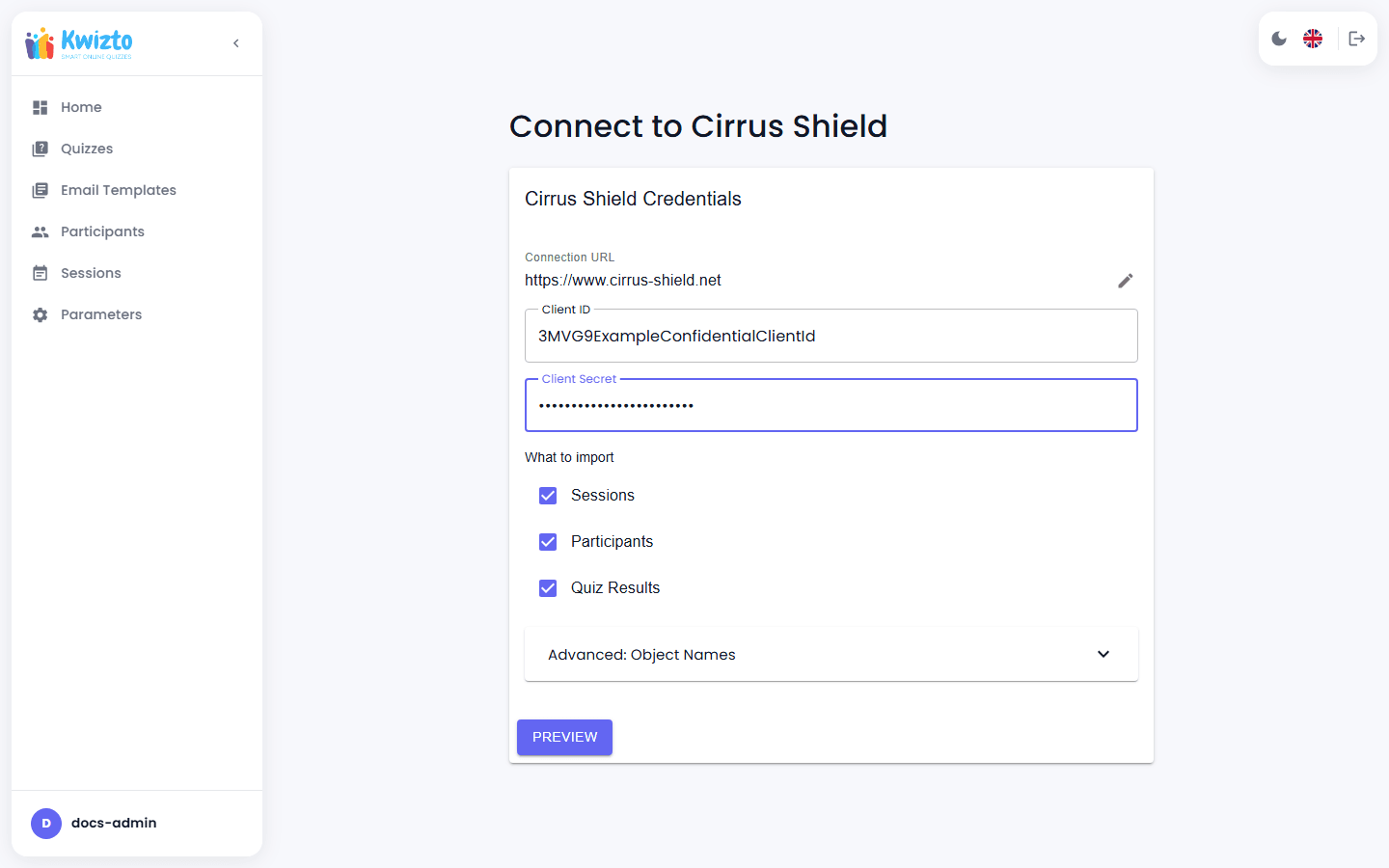
Go to Parameters > Cirrus Shield (the Migration wizard is shown there while your account is not connected to Cirrus Shield; there is no separate Migration menu item) to send the Sessions, Participants, and Quiz Results you've built up in standalone Kwizto into a Cirrus Shield organization: enter that organization's URL and the Client ID / Client Secret of a Confidential Connected App created there (not a Cirrus Shield username and password — see the companion Kwizto Admin Guide for Standalone Organizations for what that Connected App needs), choose which categories to send, click Preview to see how many local records will be sent, then Execute Migration to push them to Cirrus Shield. Despite the wizard's on-screen "Import" label, this sends data one way, from Kwizto to Cirrus Shield — it does not pull anything in. The separate, ongoing two-way Contact sync (Section 7.2) — which pulls Cirrus Shield Contacts in as Participants and pushes standalone Participants back out as Contacts — runs independently on a schedule. The wizard syncs automatically when it finishes.
7.5 Email Template Library (Both modes)
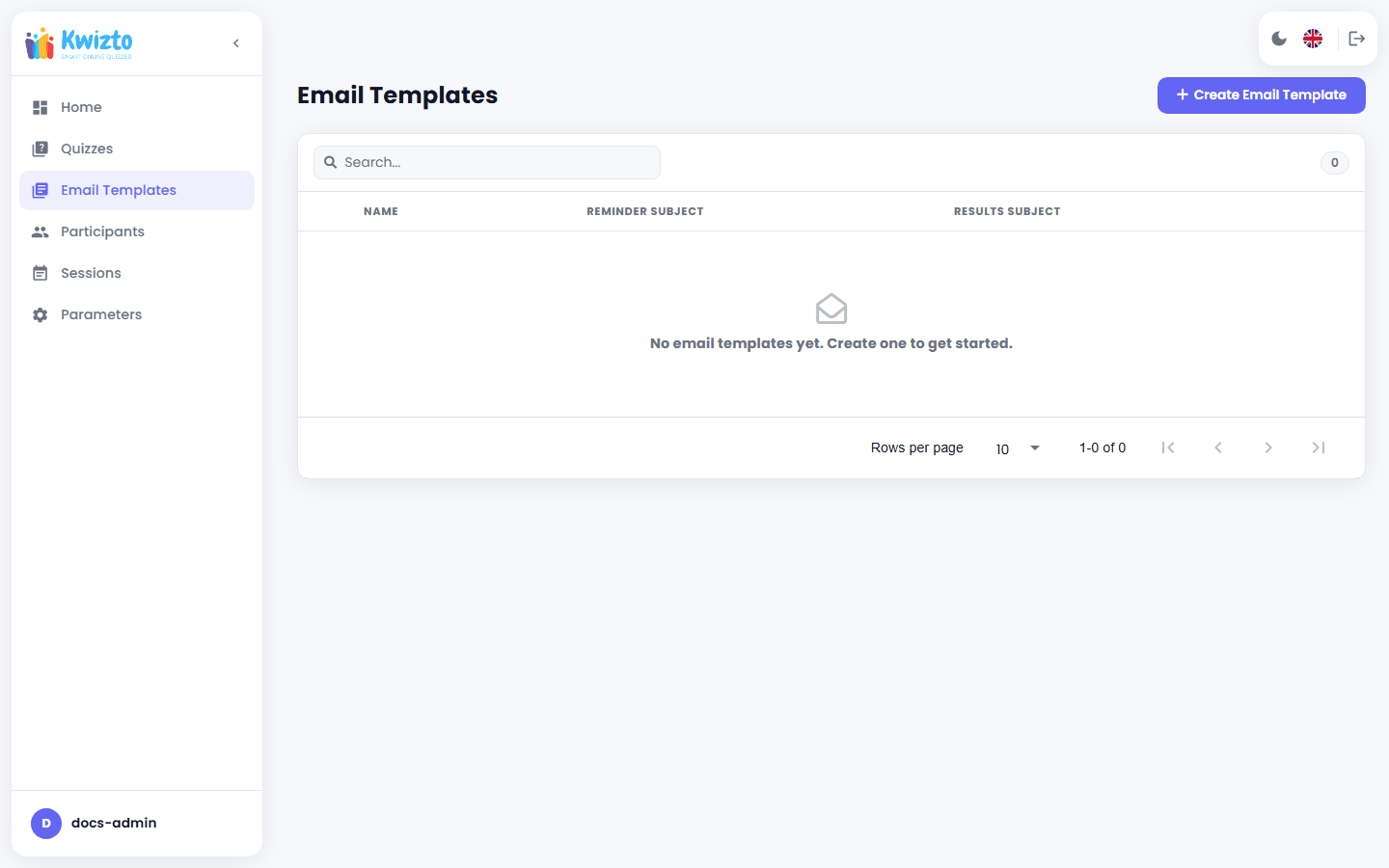
Beyond the per-quiz templates in Email Settings (Section 4), your organization maintains a reusable library of email templates you can create, edit, and delete, and pull into any quiz's Invitation, Reminder, or Results template instead of starting from scratch.